ConfUSIus and Xarray 101
This example demonstrates how to use ConfUSIus to load and handle fUSI data as DataArray instances. We will use a small subset of the Nunez-Elizalde 2022 dataset and use a few basic Xarray operations to inspect, subset, and summarize the data.
Fetch one recording from the Nunez-Elizalde 2022 dataset
ConfUSIus provides convenient functions to download public datasets. The data is
cached after the first download, so subsequent runs will be faster. The
fetch_nunez_elizalde_2022 function
allows you to specify which subjects, sessions, tasks, and acquisitions to download.
Here we select one recording from subject CR022, session 20201011, task
spontaneous, and acquisition slice03.
from pathlib import Path

import matplotlib as mpl
import matplotlib.pyplot as plt
import xarray as xr

import confusius as cf
from confusius.datasets import fetch_nunez_elizalde_2022

# Adapt background color to the current Matplotlib style.
bg_color = mpl.colors.to_hex(mpl.rcParams["figure.facecolor"])

# Keep notebook output compact for large DataArray displays.
xr.set_options(display_expand_data=False)

bids_root = fetch_nunez_elizalde_2022(
    subjects="CR022",
    sessions="20201011",
    tasks="spontaneous",
    acqs="slice03",
)
Load the recording as a DataArray
The downloaded dataset is stored following the Brain Imaging Data Structure
(BIDS), so we can use the bids_root path to
construct the path to the desired recording. The confusius.load
function reads any compatible fUSI file (NIfTI, Iconeus SCAN, Zarr, etc.) and returns
a DataArray with the data values, coordinates, and metadata all in
one instance. In the recording representation below, note the named dimensions,
physical coordinates, and representative acquisition attributes attached to the array.
pwd_path = (
    Path(bids_root)
    / "sub-CR022"
    / "ses-20201011"
    / "fusi"
    / "sub-CR022_ses-20201011_task-spontaneous_acq-slice03_pwd.nii.gz"
)
data = cf.load(pwd_path)
data
- time: 751
- z: 1
- y: 114
- x: 80
- dask.array<chunksize=(751, 1, 114, 80), meta=np.ndarray>
Array Chunk Bytes 26.13 MiB 26.13 MiB Shape (751, 1, 114, 80) (751, 1, 114, 80) Dask graph 1 chunks in 1 graph layer Data type float32 numpy.ndarray - time(time)float6410.61 10.91 11.21 ... 235.4 235.7
- units :
- s
- volume_acquisition_reference :
- start
- volume_acquisition_duration :
- 0.3
array([ 10.608, 10.908, 11.208, ..., 235.095, 235.395, 235.695], shape=(751,))
- z(z)float641.0
- units :
- mm
- voxdim :
- 0.4000000059604645
array([1.])
- y(y)float642.73 2.778 2.827 ... 8.142 8.19
- units :
- mm
- voxdim :
- 0.04831999912858009
array([2.73008, 2.7784 , 2.82672, 2.87504, 2.92336, 2.97168, 3.02 , 3.06832, 3.11664, 3.16496, 3.21328, 3.2616 , 3.30992, 3.35824, 3.40656, 3.45488, 3.5032 , 3.55152, 3.59984, 3.64816, 3.69648, 3.7448 , 3.79312, 3.84144, 3.88976, 3.93808, 3.9864 , 4.03472, 4.08304, 4.13136, 4.17968, 4.228 , 4.27632, 4.32464, 4.37296, 4.42128, 4.4696 , 4.51792, 4.56624, 4.61456, 4.66288, 4.7112 , 4.75952, 4.80784, 4.85616, 4.90448, 4.9528 , 5.00112, 5.04944, 5.09776, 5.14608, 5.1944 , 5.24272, 5.29104, 5.33936, 5.38768, 5.436 , 5.48432, 5.53264, 5.58096, 5.62928, 5.6776 , 5.72592, 5.77424, 5.82256, 5.87088, 5.9192 , 5.96752, 6.01584, 6.06416, 6.11248, 6.1608 , 6.20912, 6.25744, 6.30576, 6.35408, 6.4024 , 6.45072, 6.49904, 6.54736, 6.59568, 6.644 , 6.69232, 6.74064, 6.78896, 6.83728, 6.8856 , 6.93392, 6.98224, 7.03056, 7.07888, 7.1272 , 7.17552, 7.22384, 7.27216, 7.32048, 7.3688 , 7.41712, 7.46544, 7.51376, 7.56208, 7.6104 , 7.65872, 7.70704, 7.75536, 7.80368, 7.852 , 7.90032, 7.94864, 7.99696, 8.04528, 8.0936 , 8.14192, 8.19024]) - x(x)float64-3.95 -3.85 -3.75 ... 3.85 3.95
- units :
- mm
- voxdim :
- 0.10000000149011612
array([-3.95, -3.85, -3.75, -3.65, -3.55, -3.45, -3.35, -3.25, -3.15, -3.05,
       -2.95, -2.85, -2.75, -2.65, -2.55, -2.45, -2.35, -2.25, -2.15, -2.05,
       -1.95, -1.85, -1.75, -1.65, -1.55, -1.45, -1.35, -1.25, -1.15, -1.05,
       -0.95, -0.85, -0.75, -0.65, -0.55, -0.45, -0.35, -0.25, -0.15, -0.05,
        0.05,  0.15,  0.25,  0.35,  0.45,  0.55,  0.65,  0.75,  0.85,  0.95,
        1.05,  1.15,  1.25,  1.35,  1.45,  1.55,  1.65,  1.75,  1.85,  1.95,
        2.05,  2.15,  2.25,  2.35,  2.45,  2.55,  2.65,  2.75,  2.85,  2.95,
        3.05,  3.15,  3.25,  3.35,  3.45,  3.55,  3.65,  3.75,  3.85,  3.95])
- qform_code :
- 1
- manufacturer :
- Verasonics
- manufacturers_model_name :
- Vantage 128
- software_version :
- Alan Urban Technology & Consulting (AUTC)
- probe_manufacturer :
- Vermon
- probe_type :
- linear
- probe_model :
- L22-XTech
- probe_central_frequency :
- 15000000.0
- probe_number_of_elements :
- 128
- probe_pitch :
- 0.1
- probe_focal_width :
- 0.4
- probe_focal_depth :
- 8.0
- power_doppler_integration_duration :
- 0.3
- power_doppler_integration_stride :
- 0.3
- clutter_filter_window_duration :
- 0.4
- clutter_filter_window_stride :
- 0.3
- clutter_filters :
- ['highpass:15Hz', 'svd:remove_first_15_components']
- task_name :
- spontaneous
- task_description :
- Spontaneous activity without explicit visual stimulation.
- depth :
- [0.0, 5.46016]
- transmit_frequency :
- 15625000.0
- compound_sampling_frequency :
- 500.0
- plane_wave_angles :
- [-10.0, -7.9, -5.8, -3.6999999999999993, -1.5999999999999996, 0.5000000000000018, 2.6000000000000014, 4.700000000000002, 6.8000000000000025, 8.900000000000002]
- probe_voltage :
- 25.0
- affines :
- {'physical_to_qform': array([[1., 0., 0., 0.], [0., 1., 0., 0.], [0., 0., 1., 0.], [0., 0., 0., 1.]])}
ConfUSIus also registers a .fusi accessor on every
DataArray, which exposes fUSI-specific helpers and methods. For example, we can
inspect the sampling step along each dimension. Note that for this recording, the
temporal step isn't defined because the time coordinate isn't regularly sampled. See
the Working with Xarray guide for a broader overview
of the accessor.
/tmp/ipykernel_4143/1348712392.py:1: UserWarning: Coordinate 'time' has non-uniform sampling; spacing is undefined.
  data.fusi.spacing
Lazy loading and when to compute
ConfUSIus loads recordings lazily, so the underlying array starts out as a Dask array.
This is convenient for working with large datasets that don't fit in memory, such as
large beamformed IQ data. However, lazily loaded arrays may be chunked in ways that
are not ideal for all operations. For example, chunking across the time dimension is
ideal for processing volume-by-volume (such as when visualizing a recording in
napari), but it will make temporal operations (e.g., averaging over time, frequency
filtering, etc.) less efficient. Thus, when working with smaller recordings that do
fit in memory, it is often simpler to call .compute
right after loading to get a regular in-memory array. This is not required, but it is
recommended to make subsequent operations more straightforward.
Positional and coordinate-based indexing
Once the recording is in memory, we can keep using normal Xarray operations. A useful
distinction is between .isel, which indexes by integer
position, and .sel, which indexes by coordinate values.
- time: 50
- z: 1
- y: 114
- x: 80
- 4.464e+03 5.588e+03 5.064e+03 ... 2.841e+04 2.673e+04 2.532e+04
array([[[[ 4463.8 , 5588.404 , 5063.7925, ..., 6008.3438, 5016.807 , 5296.5776], [ 5369.187 , 5347.434 , 5393.3667, ..., 5593.255 , 5330.843 , 6088.181 ], [ 5835.804 , 5867.3096, 6175.863 , ..., 5321.1245, 5456.6743, 4612.9253], ..., [19816.035 , 20495.758 , 17393.748 , ..., 27059.963 , 26307.736 , 23214.475 ], [17802.514 , 17888.11 , 17680.232 , ..., 31637.012 , 29263.018 , 21627.123 ], [21509.184 , 18807.508 , 20343.31 , ..., 32594.61 , 30050.383 , 24083.986 ]]], [[[ 5407.5635, 5091.3843, 4347.751 , ..., 5399.663 , 6108.856 , 5394.4478], [ 4701.354 , 5039.4854, 5073.55 , ..., 5462.995 , 5485.5127, 5088.853 ], [ 6242.7456, 6078.8955, 5453.0264, ..., 5303.4873, ... [17493.861 , 17775.041 , 23547.389 , ..., 28452.746 , 22698.502 , 23594.04 ], [19309.525 , 22344.94 , 17757.36 , ..., 27594.635 , 24383.32 , 30229.205 ]]], [[[ 4762.957 , 4783.239 , 4716.9546, ..., 4631.195 , 5891.131 , 5686.8545], [ 5645.5835, 5345.232 , 4722.929 , ..., 6068.9824, 5480.8853, 5593.3716], [ 6165.6123, 5114.455 , 5317.0586, ..., 5124.0215, 6636.563 , 5232.51 ], ..., [21292.963 , 19519.293 , 23920.36 , ..., 28057.277 , 28513.908 , 25043.06 ], [19704.613 , 21517.111 , 22497.361 , ..., 26705.44 , 23562.979 , 24071.332 ], [22085.182 , 19549.383 , 20934.074 , ..., 28412.838 , 26725.537 , 25321.049 ]]]], shape=(50, 1, 114, 80), dtype=float32) - time(time)float6410.61 10.91 11.21 ... 25.01 25.31
- units :
- s
- volume_acquisition_reference :
- start
- volume_acquisition_duration :
- 0.3
array([10.608, 10.908, 11.208, 11.508, 11.808, 12.108, 12.408, 12.708, 13.008, 13.308, 13.608, 13.908, 14.208, 14.508, 14.808, 15.108, 15.408, 15.708, 16.008, 16.308, 16.608, 16.908, 17.208, 17.508, 17.808, 18.108, 18.408, 18.708, 19.008, 19.308, 19.608, 19.908, 20.208, 20.508, 20.808, 21.108, 21.408, 21.708, 22.008, 22.308, 22.608, 22.908, 23.208, 23.508, 23.808, 24.108, 24.408, 24.708, 25.008, 25.308]) - z(z)float641.0
- units :
- mm
- voxdim :
- 0.4000000059604645
array([1.])
- y(y)float642.73 2.778 2.827 ... 8.142 8.19
- units :
- mm
- voxdim :
- 0.04831999912858009
array([2.73008, 2.7784 , 2.82672, 2.87504, 2.92336, 2.97168, 3.02 , 3.06832, 3.11664, 3.16496, 3.21328, 3.2616 , 3.30992, 3.35824, 3.40656, 3.45488, 3.5032 , 3.55152, 3.59984, 3.64816, 3.69648, 3.7448 , 3.79312, 3.84144, 3.88976, 3.93808, 3.9864 , 4.03472, 4.08304, 4.13136, 4.17968, 4.228 , 4.27632, 4.32464, 4.37296, 4.42128, 4.4696 , 4.51792, 4.56624, 4.61456, 4.66288, 4.7112 , 4.75952, 4.80784, 4.85616, 4.90448, 4.9528 , 5.00112, 5.04944, 5.09776, 5.14608, 5.1944 , 5.24272, 5.29104, 5.33936, 5.38768, 5.436 , 5.48432, 5.53264, 5.58096, 5.62928, 5.6776 , 5.72592, 5.77424, 5.82256, 5.87088, 5.9192 , 5.96752, 6.01584, 6.06416, 6.11248, 6.1608 , 6.20912, 6.25744, 6.30576, 6.35408, 6.4024 , 6.45072, 6.49904, 6.54736, 6.59568, 6.644 , 6.69232, 6.74064, 6.78896, 6.83728, 6.8856 , 6.93392, 6.98224, 7.03056, 7.07888, 7.1272 , 7.17552, 7.22384, 7.27216, 7.32048, 7.3688 , 7.41712, 7.46544, 7.51376, 7.56208, 7.6104 , 7.65872, 7.70704, 7.75536, 7.80368, 7.852 , 7.90032, 7.94864, 7.99696, 8.04528, 8.0936 , 8.14192, 8.19024]) - x(x)float64-3.95 -3.85 -3.75 ... 3.85 3.95
- units :
- mm
- voxdim :
- 0.10000000149011612
array([-3.95, -3.85, -3.75, -3.65, -3.55, -3.45, -3.35, -3.25, -3.15, -3.05,
       -2.95, -2.85, -2.75, -2.65, -2.55, -2.45, -2.35, -2.25, -2.15, -2.05,
       -1.95, -1.85, -1.75, -1.65, -1.55, -1.45, -1.35, -1.25, -1.15, -1.05,
       -0.95, -0.85, -0.75, -0.65, -0.55, -0.45, -0.35, -0.25, -0.15, -0.05,
        0.05,  0.15,  0.25,  0.35,  0.45,  0.55,  0.65,  0.75,  0.85,  0.95,
        1.05,  1.15,  1.25,  1.35,  1.45,  1.55,  1.65,  1.75,  1.85,  1.95,
        2.05,  2.15,  2.25,  2.35,  2.45,  2.55,  2.65,  2.75,  2.85,  2.95,
        3.05,  3.15,  3.25,  3.35,  3.45,  3.55,  3.65,  3.75,  3.85,  3.95])
- qform_code :
- 1
- manufacturer :
- Verasonics
- manufacturers_model_name :
- Vantage 128
- software_version :
- Alan Urban Technology & Consulting (AUTC)
- probe_manufacturer :
- Vermon
- probe_type :
- linear
- probe_model :
- L22-XTech
- probe_central_frequency :
- 15000000.0
- probe_number_of_elements :
- 128
- probe_pitch :
- 0.1
- probe_focal_width :
- 0.4
- probe_focal_depth :
- 8.0
- power_doppler_integration_duration :
- 0.3
- power_doppler_integration_stride :
- 0.3
- clutter_filter_window_duration :
- 0.4
- clutter_filter_window_stride :
- 0.3
- clutter_filters :
- ['highpass:15Hz', 'svd:remove_first_15_components']
- task_name :
- spontaneous
- task_description :
- Spontaneous activity without explicit visual stimulation.
- depth :
- [0.0, 5.46016]
- transmit_frequency :
- 15625000.0
- compound_sampling_frequency :
- 500.0
- plane_wave_angles :
- [-10.0, -7.9, -5.8, -3.6999999999999993, -1.5999999999999996, 0.5000000000000018, 2.6000000000000014, 4.700000000000002, 6.8000000000000025, 8.900000000000002]
- probe_voltage :
- 25.0
- affines :
- {'physical_to_qform': array([[1., 0., 0., 0.], [0., 1., 0., 0.], [0., 0., 1., 0.], [0., 0., 0., 1.]])}
Here we define a region of interest (ROI) in physical coordinates. This is often more meaningful than index-based slicing because the bounds are expressed directly in physical units (e.g., millimeters) rather than in terms of array indices, which may not be as intuitive to interpret.
- time: 751
- z: 1
- y: 83
- x: 40
- 5.411e+04 2.929e+04 1.632e+04 ... 2.982e+04 2.934e+04 2.825e+04
array([[[[ 54114.15 , 29293.102, 16318.03 , ..., 70195.4 , 82424.75 , 53491.15 ], [ 36852.598, 23997.521, 17537.834, ..., 87855.99 , 89461.02 , 50858.67 ], [ 31055.729, 20669.076, 19216.28 , ..., 90254.805, 65013.676, 93702.836], ..., [ 28217.041, 28518.54 , 36518.164, ..., 35137.496, 37473.96 , 31445.836], [ 36724.688, 34043.195, 41564.836, ..., 28682.494, 36342.758, 24813.594], [ 36131.27 , 39894.926, 44742.293, ..., 31363.957, 32790.47 , 26770.775]]], [[[ 34392.016, 19327.553, 14827.421, ..., 62507.297, 56234.023, 32206.031], [ 33328.855, 18415.244, 14050.276, ..., 121733.43 , 88763.02 , 64205.09 ], [ 40385.535, 16530.572, 16047.016, ..., 120963.68 , ... [ 33237.37 , 35654.13 , 52624.965, ..., 37240.01 , 28125.756, 25826.408], [ 40038.098, 42877.617, 51304.074, ..., 34593.01 , 26241.9 , 26714.23 ]]], [[[ 44361.438, 18625.635, 17125.664, ..., 81257.48 , 56526.516, 47173.05 ], [ 42567.773, 19387.824, 16338.876, ..., 133328.88 , 57100.35 , 45971.17 ], [ 31899.297, 19105.168, 18343.734, ..., 120351.74 , 52336.94 , 68195.125], ..., [ 27940.451, 28368.473, 37943.44 , ..., 30510.564, 30199.082, 26136.422], [ 31668.438, 32992.008, 43480.77 , ..., 30339.107, 32981.223, 26465.889], [ 40846.68 , 44659.457, 47308.09 , ..., 29822.707, 29339.736, 28245.74 ]]]], shape=(751, 1, 83, 40), dtype=float32) - time(time)float6410.61 10.91 11.21 ... 235.4 235.7
- units :
- s
- volume_acquisition_reference :
- start
- volume_acquisition_duration :
- 0.3
array([ 10.608, 10.908, 11.208, ..., 235.095, 235.395, 235.695], shape=(751,))
- z(z)float641.0
- units :
- mm
- voxdim :
- 0.4000000059604645
array([1.])
- y(y)float643.503 3.552 3.6 ... 7.417 7.465
- units :
- mm
- voxdim :
- 0.04831999912858009
array([3.5032 , 3.55152, 3.59984, 3.64816, 3.69648, 3.7448 , 3.79312, 3.84144, 3.88976, 3.93808, 3.9864 , 4.03472, 4.08304, 4.13136, 4.17968, 4.228 , 4.27632, 4.32464, 4.37296, 4.42128, 4.4696 , 4.51792, 4.56624, 4.61456, 4.66288, 4.7112 , 4.75952, 4.80784, 4.85616, 4.90448, 4.9528 , 5.00112, 5.04944, 5.09776, 5.14608, 5.1944 , 5.24272, 5.29104, 5.33936, 5.38768, 5.436 , 5.48432, 5.53264, 5.58096, 5.62928, 5.6776 , 5.72592, 5.77424, 5.82256, 5.87088, 5.9192 , 5.96752, 6.01584, 6.06416, 6.11248, 6.1608 , 6.20912, 6.25744, 6.30576, 6.35408, 6.4024 , 6.45072, 6.49904, 6.54736, 6.59568, 6.644 , 6.69232, 6.74064, 6.78896, 6.83728, 6.8856 , 6.93392, 6.98224, 7.03056, 7.07888, 7.1272 , 7.17552, 7.22384, 7.27216, 7.32048, 7.3688 , 7.41712, 7.46544]) - x(x)float64-1.95 -1.85 -1.75 ... 1.85 1.95
- units :
- mm
- voxdim :
- 0.10000000149011612
array([-1.95, -1.85, -1.75, -1.65, -1.55, -1.45, -1.35, -1.25, -1.15, -1.05,
       -0.95, -0.85, -0.75, -0.65, -0.55, -0.45, -0.35, -0.25, -0.15, -0.05,
        0.05,  0.15,  0.25,  0.35,  0.45,  0.55,  0.65,  0.75,  0.85,  0.95,
        1.05,  1.15,  1.25,  1.35,  1.45,  1.55,  1.65,  1.75,  1.85,  1.95])
- qform_code :
- 1
- manufacturer :
- Verasonics
- manufacturers_model_name :
- Vantage 128
- software_version :
- Alan Urban Technology & Consulting (AUTC)
- probe_manufacturer :
- Vermon
- probe_type :
- linear
- probe_model :
- L22-XTech
- probe_central_frequency :
- 15000000.0
- probe_number_of_elements :
- 128
- probe_pitch :
- 0.1
- probe_focal_width :
- 0.4
- probe_focal_depth :
- 8.0
- power_doppler_integration_duration :
- 0.3
- power_doppler_integration_stride :
- 0.3
- clutter_filter_window_duration :
- 0.4
- clutter_filter_window_stride :
- 0.3
- clutter_filters :
- ['highpass:15Hz', 'svd:remove_first_15_components']
- task_name :
- spontaneous
- task_description :
- Spontaneous activity without explicit visual stimulation.
- depth :
- [0.0, 5.46016]
- transmit_frequency :
- 15625000.0
- compound_sampling_frequency :
- 500.0
- plane_wave_angles :
- [-10.0, -7.9, -5.8, -3.6999999999999993, -1.5999999999999996, 0.5000000000000018, 2.6000000000000014, 4.700000000000002, 6.8000000000000025, 8.900000000000002]
- probe_voltage :
- 25.0
- affines :
- {'physical_to_qform': array([[1., 0., 0., 0.], [0., 1., 0., 0.], [0., 0., 1., 0.], [0., 0., 0., 1.]])}
Plot a regional time course
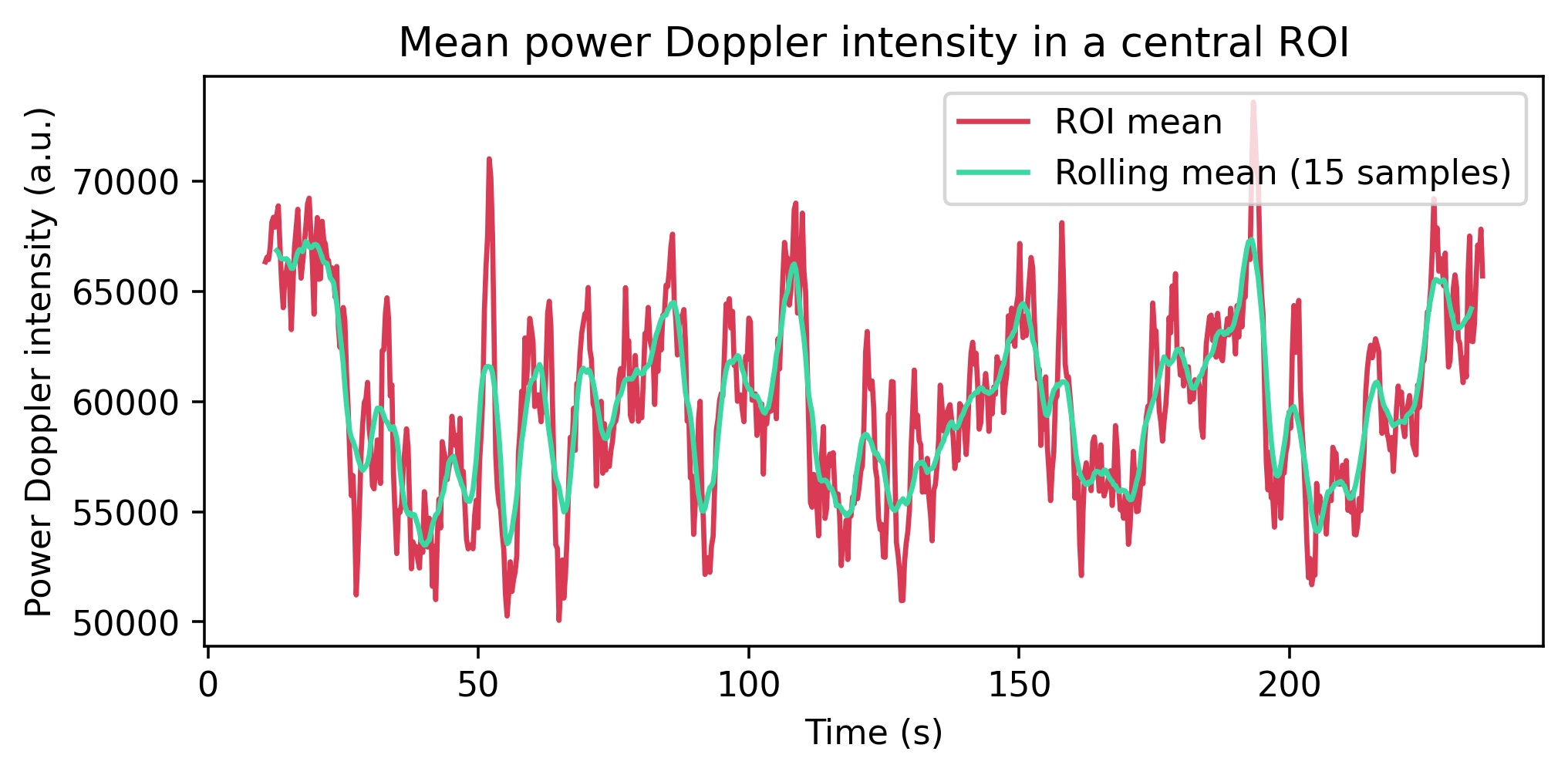
To summarize the ROI over time, we average over the spatial dimensions. With Xarray,
reductions such as .mean take dimension names like
("z", "y", "x") rather than integer axis indices, which makes the intent much
clearer than the NumPy-style axis=(...) equivalent.
- time: 751
- 6.635e+04 6.656e+04 6.645e+04 ... 6.653e+04 6.783e+04 6.571e+04
array([66348.41 , 66557.016, 66450.04 , 67012.49 , 68144.78 , 68372.79 , 67921.1 , 68469.25 , 68890.71 , 67069.58 , 65436.324, 64262.84 , 65602.41 , 65938.49 , 66399.56 , 65153.65 , 63270.293, 65269.168, 67039.164, 67905.305, 68734.445, 66779.84 , 65605.56 , 66292.42 , 67121.12 , 67980.32 , 68977.66 , 69240.414, 67765.61 , 66217.65 , 63970.117, 67184.92 , 68357.95 , 65556.1 , 65583.58 , 68190.2 , 67335.26 , 67154.64 , 66480.61 , 66404.164, 65663.086, 66078.74 , 65832.52 , 64738.445, 66136.05 , 63371.164, 62459.168, 63203.66 , 64275.445, 63713.633, 61376.543, 59790.59 , 57591.227, 55730.71 , 56647.2 , 54759.715, 51221.914, 52965.773, 55159.824, 57615.84 , 58986.402, 59964.27 , 60136.88 , 60874.65 , 58757.555, 58061.04 , 56182.293, 56041.047, 57076.32 , 58261.273, 56741.527, 56287.008, 62313.113, 62347.316, 63996.84 , 64713.707, 63709.555, 60253.766, 60759.66 , 56687.83 , 54837.04 , 53100.68 , 55049.348, 54970.59 , 55355.984, 57016.164, 57815.85 , 58763.09 , 57906.36 , 55199.902, 52410.145, 53630.35 , 53393.18 , 53412.445, 52818.207, 52445.332, 54071.344, 53151.9 , 55913.324, 54888.117, 53394.56 , 54705.332, 54446.906, 51611.812, 53421.26 , 51009.047, 53835.297, 55573.95 , 54263.43 , 58182.863, 57732.68 , 57438.51 , 56453.465, 56926.09 , 57313.305, 59335.188, 58494.94 , 58023.418, 58466.703, 56910.598, ... 62800.184, 64596.082, 60621.746, 58751.543, 57612.87 , 55740.2 , 53596.93 , 52002.83 , 52876.074, 51686.086, 52161.203, 52125.19 , 56288.27 , 55193.66 , 55703.406, 54894.25 , 54649.594, 55288. , 53983.594, 55507.773, 55747.605, 55503.895, 57926.18 , 57712.594, 57642.18 , 56274.074, 56258.555, 56250.11 , 57111.58 , 56504.676, 57320.49 , 55064.59 , 55482.023, 54983.844, 55895.94 , 53971.42 , 53948.85 , 54405.176, 55606.496, 55052.133, 56424.19 , 57774. , 60459.79 , 61509.203, 62188.14 , 62561.008, 61988.496, 62394.887, 62853.71 , 62584.25 , 62289.47 , 60180.613, 58560.766, 59464.75 , 59374.035, 58590.332, 58315.652, 57802.043, 58368.395, 56826.805, 58152.406, 59723.254, 60707.84 , 59914.598, 60431.367, 58878.004, 58409.24 , 59576.805, 59844.785, 60277.582, 59497.55 , 58059.453, 57816.06 , 57585.453, 60758.086, 59732.105, 60550.277, 61746.934, 61891.395, 62957.465, 64076.844, 64144.215, 65131.863, 66848.12 , 69217.64 , 66896.79 , 67886.78 , 65924.86 , 66506.016, 66236.22 , 65263.81 , 66744.086, 63441.13 , 61573.98 , 61871.69 , 63669.99 , 65150.76 , 65755.06 , 65188.97 , 62844.523, 62633.242, 61690.93 , 60862.31 , 61990.387, 61120.254, 65677.25 , 67520.95 , 62751.688, 62723.195, 63534.07 , 65492.758, 67111.61 , 66533.625, 67830.9 , 65706.05 ], dtype=float32) - time(time)float6410.61 10.91 11.21 ... 235.4 235.7
- units :
- s
- volume_acquisition_reference :
- start
- volume_acquisition_duration :
- 0.3
array([ 10.608, 10.908, 11.208, ..., 235.095, 235.395, 235.695], shape=(751,))
- qform_code :
- 1
- manufacturer :
- Verasonics
- manufacturers_model_name :
- Vantage 128
- software_version :
- Alan Urban Technology & Consulting (AUTC)
- probe_manufacturer :
- Vermon
- probe_type :
- linear
- probe_model :
- L22-XTech
- probe_central_frequency :
- 15000000.0
- probe_number_of_elements :
- 128
- probe_pitch :
- 0.1
- probe_focal_width :
- 0.4
- probe_focal_depth :
- 8.0
- power_doppler_integration_duration :
- 0.3
- power_doppler_integration_stride :
- 0.3
- clutter_filter_window_duration :
- 0.4
- clutter_filter_window_stride :
- 0.3
- clutter_filters :
- ['highpass:15Hz', 'svd:remove_first_15_components']
- task_name :
- spontaneous
- task_description :
- Spontaneous activity without explicit visual stimulation.
- depth :
- [0.0, 5.46016]
- transmit_frequency :
- 15625000.0
- compound_sampling_frequency :
- 500.0
- plane_wave_angles :
- [-10.0, -7.9, -5.8, -3.6999999999999993, -1.5999999999999996, 0.5000000000000018, 2.6000000000000014, 4.700000000000002, 6.8000000000000025, 8.900000000000002]
- probe_voltage :
- 25.0
- affines :
- {'physical_to_qform': array([[1., 0., 0., 0.], [0., 1., 0., 0.], [0., 0., 1., 0.], [0., 0., 0., 1.]])}
The resulting 1D DataArray keeps the time coordinate from the original recording, so plotting it with Xarray's built-in plotting function automatically uses the time values on the x-axis. As one slightly more advanced example, we can also compute a rolling mean with Xarray to smooth short-term fluctuations, while still keeping the same labeled time axis.
roi_trace_smooth = roi_trace.rolling(time=15, center=True).mean()

fig, ax = plt.subplots(figsize=(7, 3), facecolor=bg_color)

roi_trace.plot(ax=ax, color="#d93a54", label="ROI mean")
roi_trace_smooth.plot(ax=ax, color="#3ad9a4", label="Rolling mean (15 samples)")

ax.set_title("Mean power Doppler intensity in a central ROI")
ax.set_xlabel("Time (s)")
ax.set_ylabel("Power Doppler intensity (a.u.)")
_ = ax.legend(loc="upper right")
Compute and plot the mean power Doppler volume
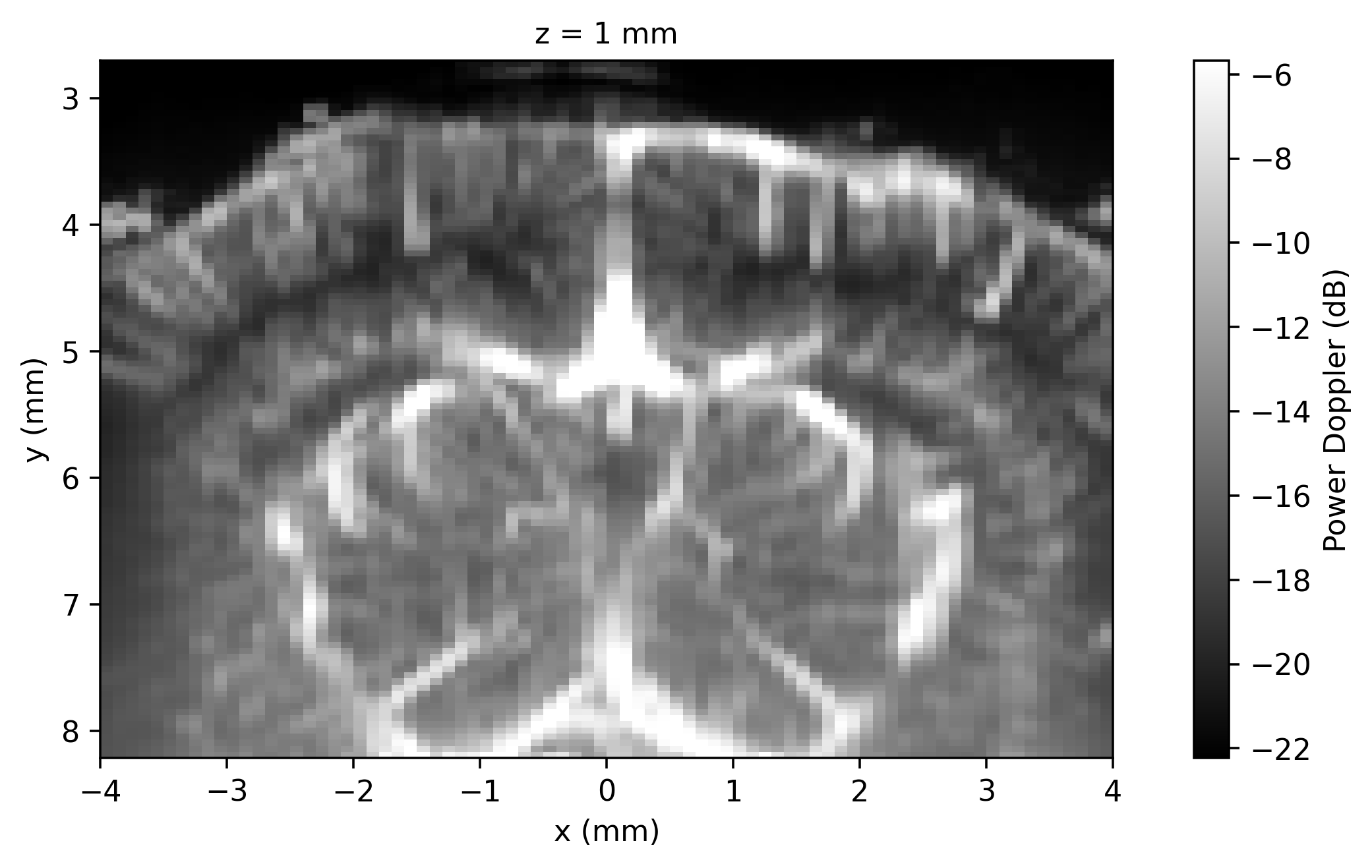
This recording has a single brain slice, so averaging over time leaves a 2D image. We
convert it to decibel-scale and display it using ConfUSIus's
plot_volume and
.fusi.scale accessors.
mean_db = data.mean("time").fusi.scale.db()

plotter = cf.plotting.plot_volume(
    mean_db, cmap="gray", cbar_label="Power Doppler (dB)", bg_color=bg_color
)
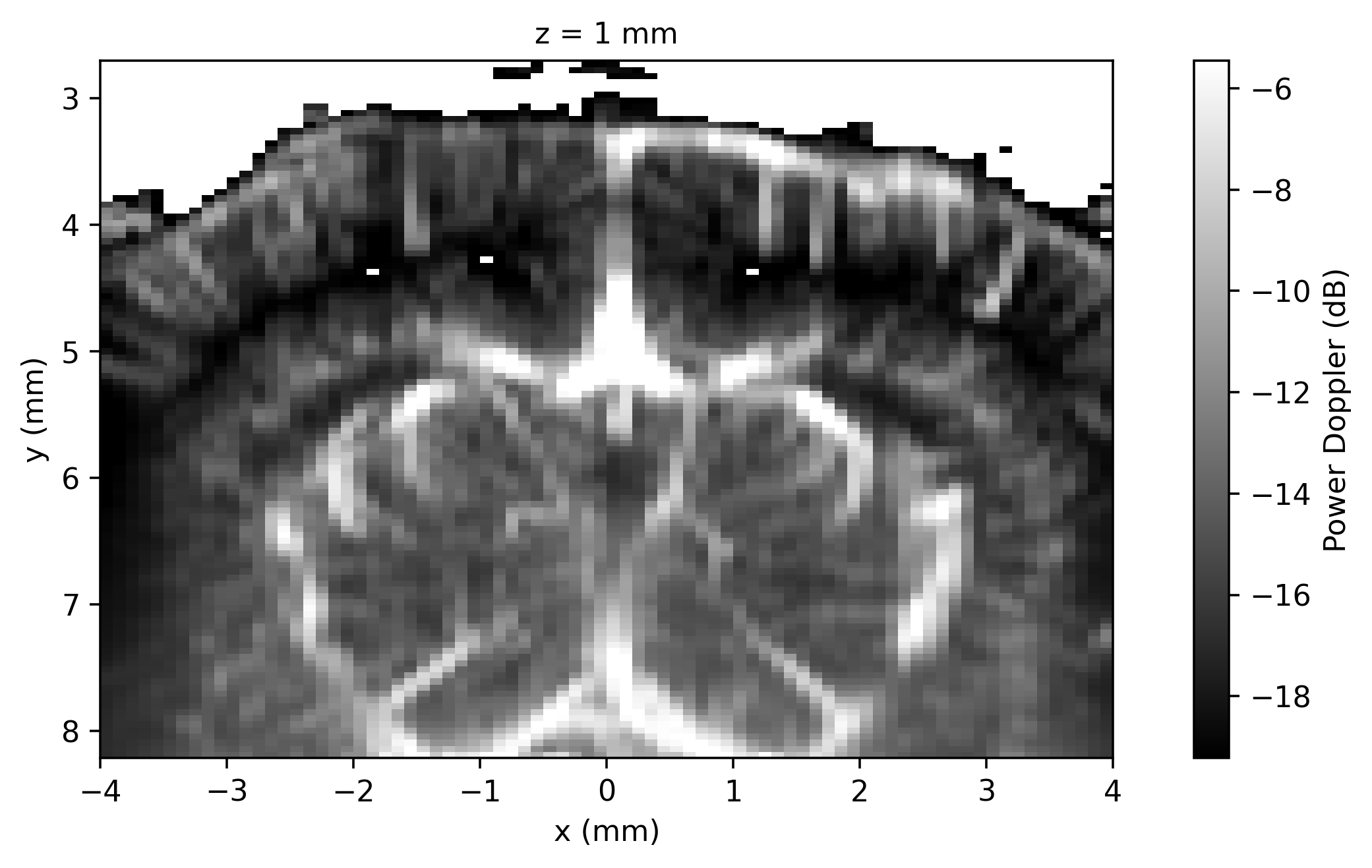
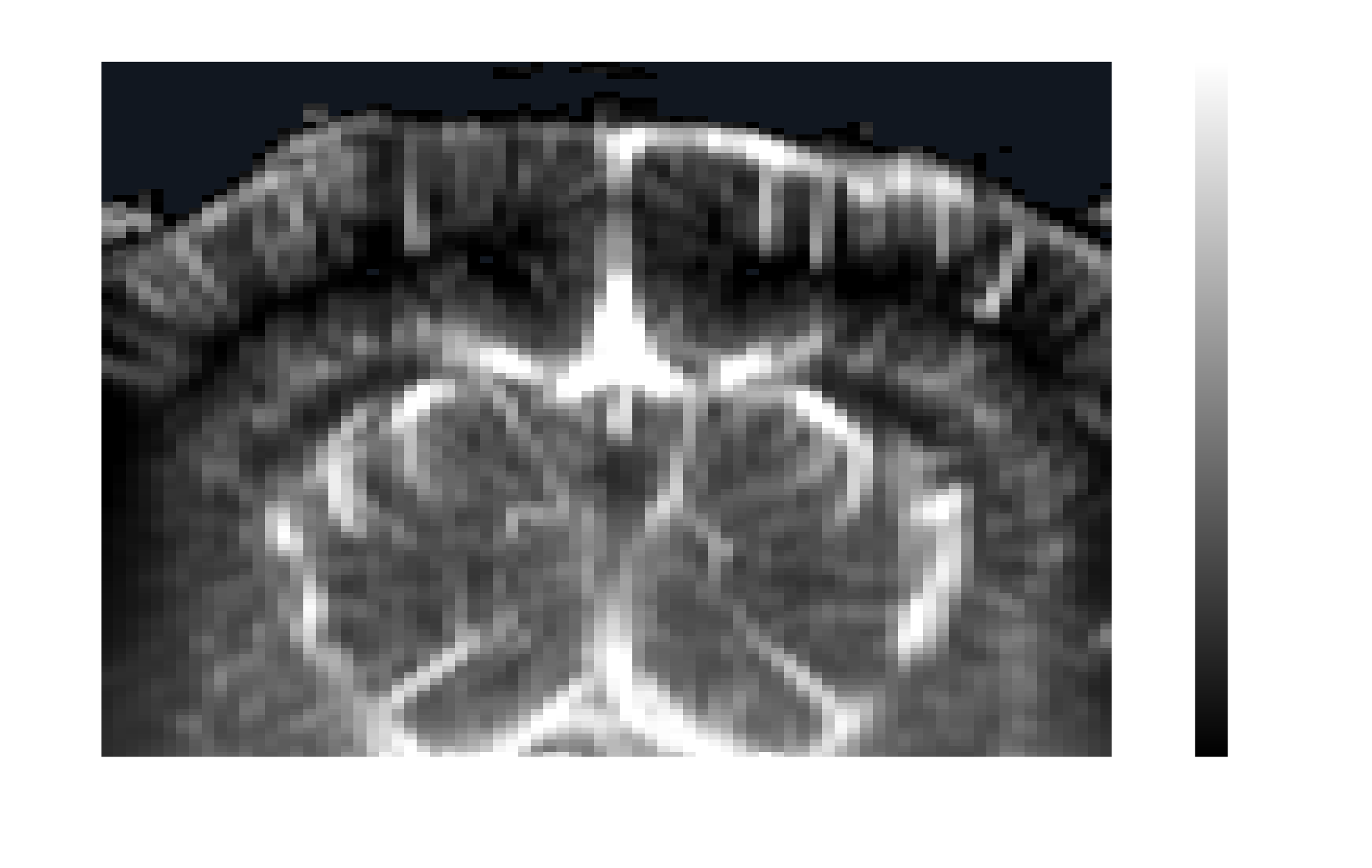
Mask low-intensity pixels with where
Xarray's .where keeps the same coordinates and dimensions
while masking values that do not satisfy a condition. Here we suppress low-intensity
pixels in the mean image before plotting it again.
mean_db_masked = mean_db.where(mean_db > -20)

plotter = mean_db_masked.fusi.plot.volume(
    cmap="gray", cbar_label="Power Doppler (dB)", bg_color=bg_color
)
Save a processed result
ConfUSIus can also save DataArrays back to disk through the
.fusi.save method. For example, we can save
the masked mean image as a NIfTI file.
mean_db_masked.fusi.save(
    "sub-CR022_ses-20201011_task-spontaneous_acq-slice03_desc-maskedmean_pwd.nii.gz"
)
Total running time: 8.9 s