Visualization
ConfUSIus provides tools for both interactive exploration and static figure generation:
| Tool | Backend | Best for |
|---|---|---|
plot_napari / .fusi.plot.napari() |
napari | Interactive exploration of 3D+t datasets |
draw_napari_labels / .fusi.plot.draw_napari_labels() + labels_from_layer / .fusi.plot.labels_from_layer() |
napari | Interactive manual ROI drawing |
plot_volume / .fusi.plot.volume() |
Matplotlib | Static slice grids |
plot_contours / .fusi.plot.contours() |
Matplotlib | Contour-only grids (masks or atlas outlines) |
plot_composite / .fusi.plot.composite() |
Matplotlib | Composite plots of two volumes |
plot_stat_map / .fusi.plot.stat_map() |
Matplotlib | Statistical overlays on an anatomical background |
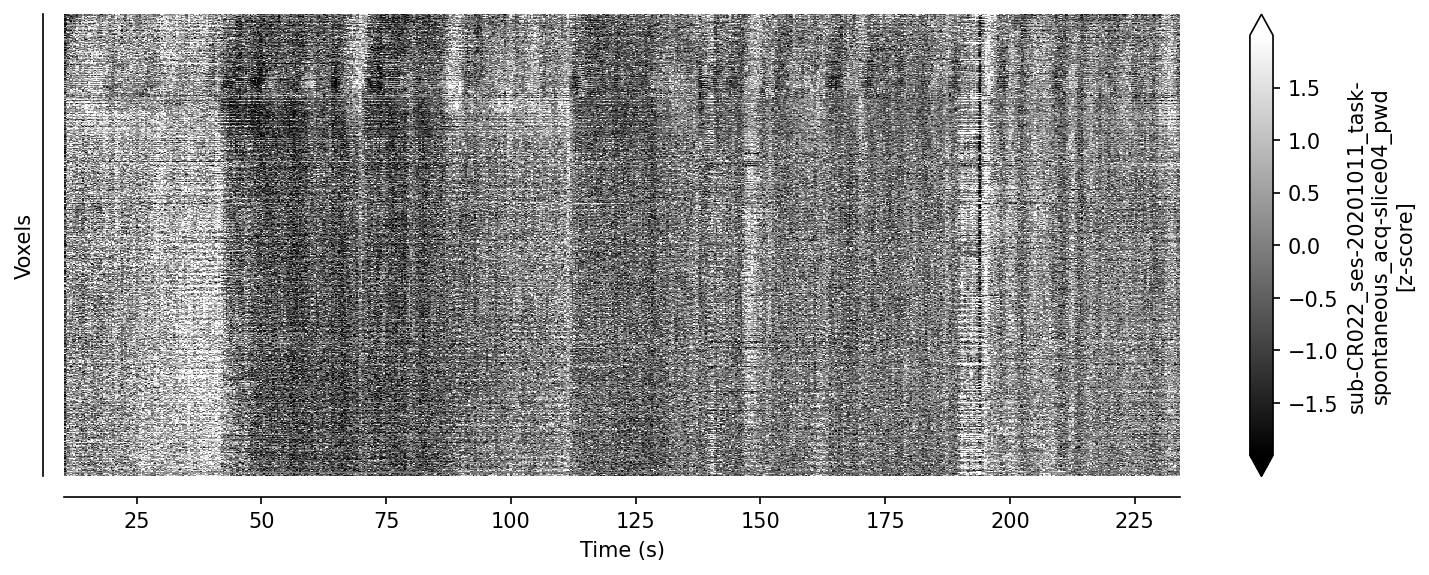
plot_carpet / .fusi.plot.carpet() |
Matplotlib | Voxel time-series raster (quality control) |
plot_matrix |
Matplotlib | Any square 2D matrix (e.g. correlation, connectivity, or statistical matrices) |
All functions accept DataArrays and use world coordinates for axis scaling
automatically. The Xarray accessor variants (.fusi.plot.*) offer a more
concise syntax; both call the same underlying functions.
Example dataset setup (Nunez-Elizalde et al., 2022)
The figures on this page are generated using the Nunez-Elizalde et al. (2022)
dataset2 obtained with
fetch_nunez_elizalde_2022. The
code below shows how to load the power Doppler, angiography, and Allen atlas
segmentation for one acquisition and build a napari colormap from the Allen
structure tree. You can run this code in a Jupyter notebook to follow along and
generate the same figures as you read through the guide.
import csv

import confusius as cf
import numpy as np
from confusius.datasets import fetch_nunez_elizalde_2022
from napari.utils.colormaps import DirectLabelColormap


def _nunez_allen_label_colormap(structure_tree_csv, atlas_labels):
    """Build a napari labels colormap from structure-tree colors."""
    with open(structure_tree_csv, newline="", encoding="utf-8") as f:
        rows = list(csv.DictReader(f))

    labels = {int(v) for v in np.unique(atlas_labels.values) if int(v) > 0}
    key = max(
        ("graph_order", "sphinx_id", "id"),
        key=lambda k: len({int(float(r[k])) for r in rows if r.get(k)} & labels),
    )

    rgb = {}
    for r in rows:
        if not r.get(key) or not r.get("color_hex_triplet"):
            continue
        lab = int(float(r[key]))
        if lab not in labels:
            continue
        h = r["color_hex_triplet"].lstrip("#")
        rgb[lab] = tuple(int(h[i : i + 2], 16) / 255 for i in (0, 2, 4))

    return DirectLabelColormap(
        color_dict={
            0: np.zeros(4),
            None: np.zeros(4),
            **{k: np.array([*v, 0.7]) for k, v in rgb.items()},
        }
    )


bids_root = fetch_nunez_elizalde_2022(
    subjects=["CR022"],
    sessions=["20201011", "20201007"],
    tasks=["spontaneous"],
    acqs=["slice03"],
)

pwd = cf.load(
    bids_root
    / "sub-CR022/ses-20201011/fusi"
    / "sub-CR022_ses-20201011_task-spontaneous_acq-slice03_pwd.nii.gz"
)
mean_vol = pwd.mean("time").compute()
angio = cf.load(
    bids_root / "sub-CR022/ses-20201011/angio" / "sub-CR022_ses-20201011_pwd.nii.gz"
).compute()
angio_2 = cf.load(
    bids_root / "sub-CR022/ses-20201007/angio" / "sub-CR022_ses-20201007_pwd.nii.gz"
).compute()
atlas_labels = cf.load(
    bids_root
    / "derivatives/allenccf_align/sub-CR022/ses-20201011/fusi"
    / "sub-CR022_ses-20201011_space-fusi_desc-allenccf_dseg.nii.gz"
)
atlas_labels = atlas_labels.sel(z=mean_vol["z"], method="nearest").assign_coords(
    z=mean_vol["z"]
)

label_colormap = _nunez_allen_label_colormap(
    bids_root / "derivatives/allenccf_align/structure_tree_safe_2017.csv",
    atlas_labels,
)
Interactive Exploration with napari
ConfUSIus relies on napari for interactive visualization of 3D+t fUSI data. Napari handles large datasets efficiently through lazy loading, allowing you to explore even beamformed IQ data without running out of memory. You may find it helpful to read through the tour of the napari viewer to familiarize yourself with the controls and features.
Basic Usage
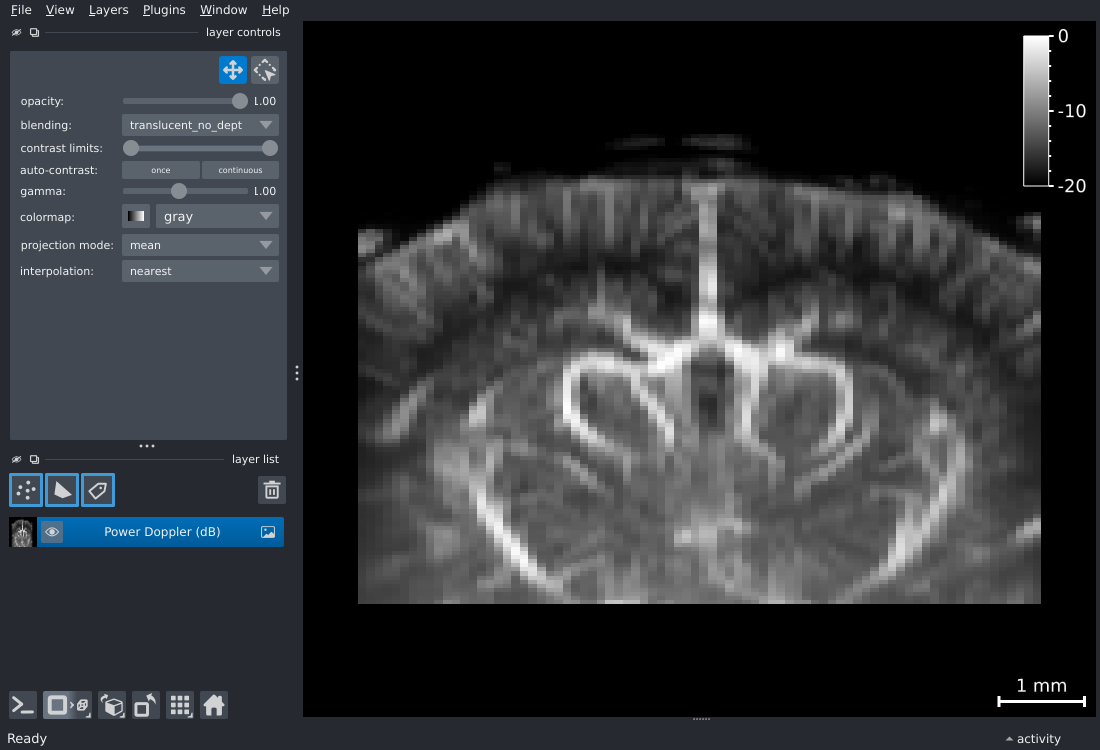
This opens a napari viewer with a scale bar, colorbar, and correct world scaling across axes. The viewer is fully interactive: you can zoom, pan, and scroll through time and elevation slices with the sliders or mouse wheel.
Using napari's annotation tools and plugins
Napari's annotation tools let you draw regions of
interest and place
markers on your fUSI volumes.
ConfUSIus also provides
draw_napari_labels to open a viewer with
an empty Labels layer ready for painting (see the Manual ROI
Drawing section below). These annotations can be saved and
loaded for later analysis. Additionally, the napari Hub
hosts hundreds of plugins that extend functionality—from segmentation algorithms to
integration with other imaging modalities like microscopy or MRI.
Napari Parameters
By default napari auto-scales contrast to the data range. For power Doppler, working in decibel scale with explicit limits is often more informative:
# dB-scaled power Doppler with fixed contrast window.
viewer, layer = cf.plotting.plot_napari(
    pwd.fusi.scale.db(),
    contrast_limits=(-20, 0),
    colormap="hot",
)
contrast_limits, colormap, and any other keyword arguments are forwarded directly to
napari.imshow.
Overlaying an Atlas as a Labels Layer
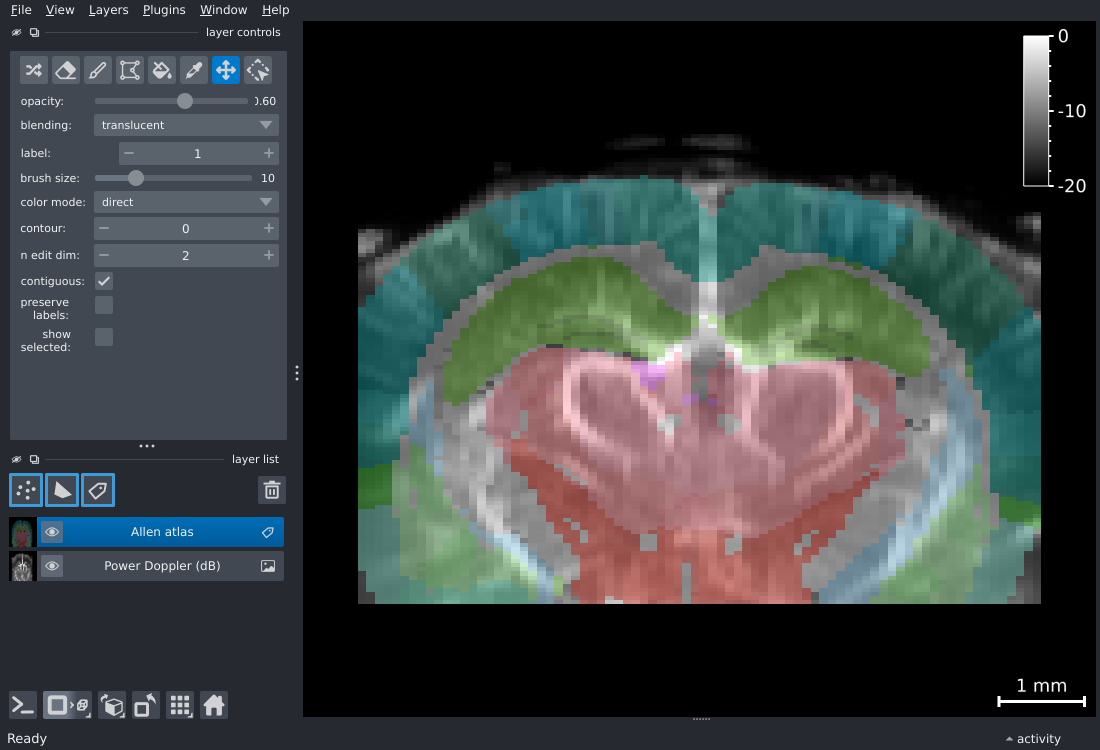
Napari's labels layer renders integer-labeled masks as filled or contoured regions,
ideal for visualizing an atlas alongside your power Doppler data. With the Nunez-Elizalde
dataset, you can use the precomputed Allen segmentation in derivatives/allenccf_align:
# Load power Doppler mean volume and open viewer.
viewer, layer = cf.plotting.plot_napari(
    mean_vol.fusi.scale.db(),
    contrast_limits=(-20, 0),
)

# Add pre-registered Allen labels as a labels layer.
viewer, labels_layer = cf.plotting.plot_napari(
    atlas_labels,
    viewer=viewer,
    layer_type="labels",
    colormap=label_colormap,
    name="Allen atlas",
    opacity=0.6,
)
Adding Multiple Image Layers
The viewer argument works for any plot_napari call, letting you load two image
datasets into the same viewer for direct comparison; for example, before and after
motion correction:
Slicing Across Different Spatial Dimensions
By default, napari shows the last two spatial dimensions as a 2D plane and the remaining
dimensions (e.g., time, z) as sliders. If you prefer a different default slicing
axis—for example slicing along y (depth) instead of z (elevation)—use
dim_order to reorder the spatial axes:
# Swap z and y: depth becomes the slider axis.
viewer, layer = pwd_3d.fusi.plot.napari(dim_order=("y", "z", "x"))
3D Rendering
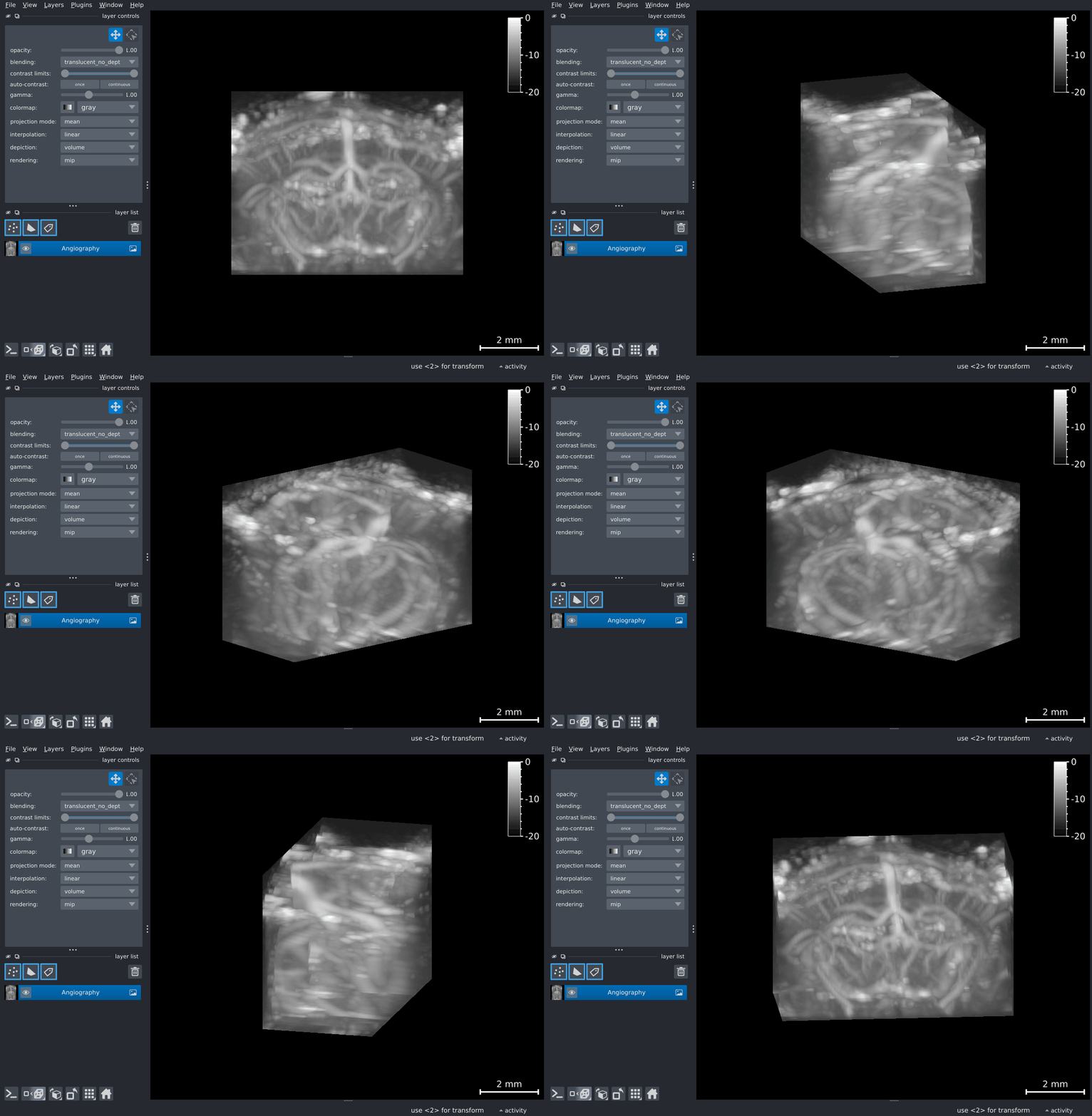
For volumetric datasets, napari can render the data in full 3D using volume rendering (accessible by clicking the second icon in the bottom-left controls). In the 3D view you can drag to orbit, scroll to zoom, and use the napari controls to adjust the rendering.
Manual ROI Drawing
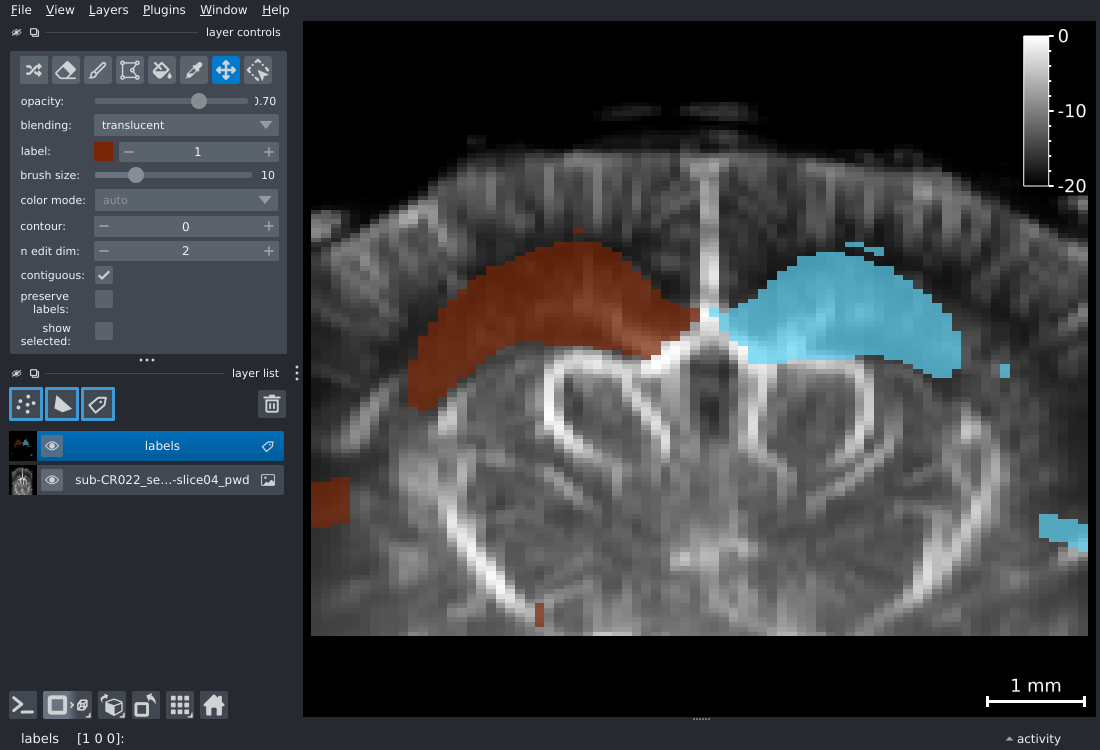
draw_napari_labels opens a napari viewer
with your data as a background image and an empty Labels layer on top. You can then
paint integer labels directly in the viewer using napari's brush tool—each distinct
integer becomes a separate region of interest (ROI).
import xarray as xr
import confusius as cf

pwd = cf.load("sub-01_task-awake_pwd.zarr")
mean_vol = pwd.mean("time").compute()

# Open viewer with an empty Labels layer ready for painting.
viewer, labels_layer = cf.plotting.draw_napari_labels(
    mean_vol.fusi.scale.db(),
    contrast_limits=(-20, 0),
    colormap="gray",
)
The Labels layer is aligned to the same world coordinate frame as the image layer, so the spatial scale and origin are consistent regardless of voxel size or data origin.
Once you have finished painting, use
labels_from_layer to convert the Labels layer
into a stacked integer DataArray compatible with
extract_with_labels,
plot_contours, and
VolumePlotter.add_contours:
from confusius.plotting import labels_from_layer

# Convert the painted layer to a stacked DataArray.
# label_map has dims ("mask", "k", "j", "i"), one layer per painted label.
label_map = labels_from_layer(labels_layer, mean_vol)

# Each label's color as painted in napari is stored in attrs["rgb_lookup"]
# and will be reused automatically by plot_contours and add_contours.

# Extract region-averaged signals.
region_signals = pwd.fusi.extract.with_labels(label_map)
# region_signals has dims (time, region).

# Overlay contours on a volume plot.
plotter = mean_vol.fusi.scale.db().fusi.plot.volume(slice_mode="z", cmap="gray")
plotter.add_contours(label_map)
Static Volume Plots
plot_volume generates a static Matplotlib grid of 2D
slices—one panel per coordinate along the chosen slicing dimension. It is the standard
tool in ConfUSIus for generating static figures of 3D volumes, functional activation
maps, or 3D angiography data.
Basic Usage
The function returns a VolumePlotter object that
manages the underlying Matplotlib Figure and
Axes and supports overlay operations (see Overlaying
Contours).
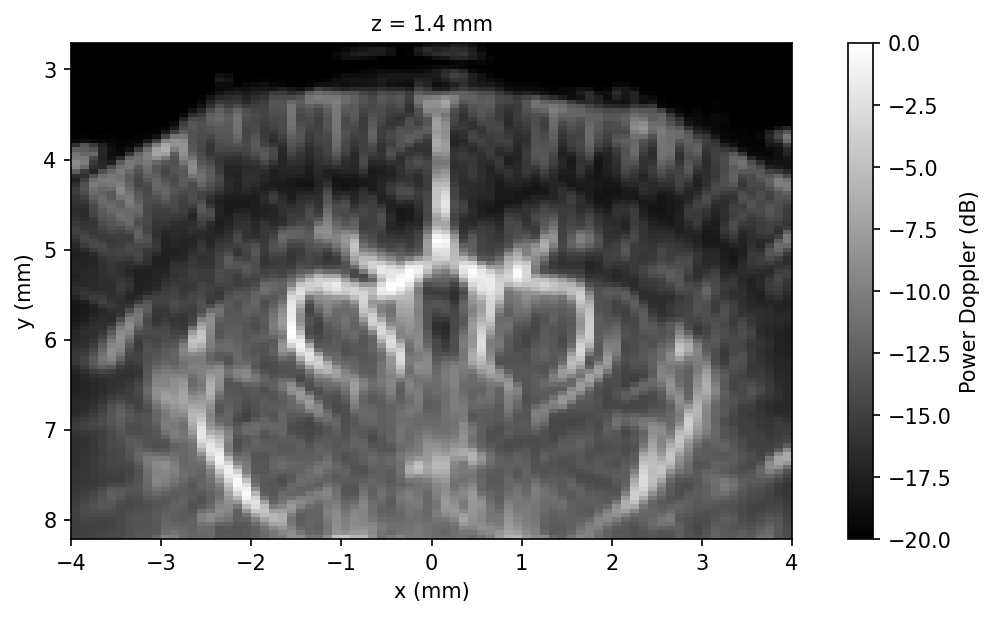
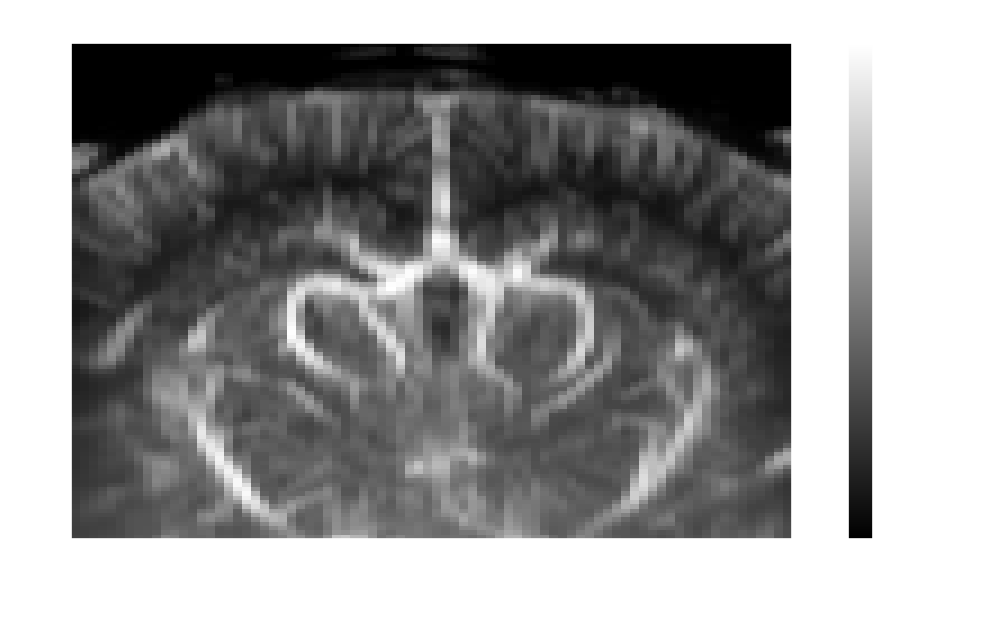
When the data has multiple slices along the sliced dimension, plot_volume lays them
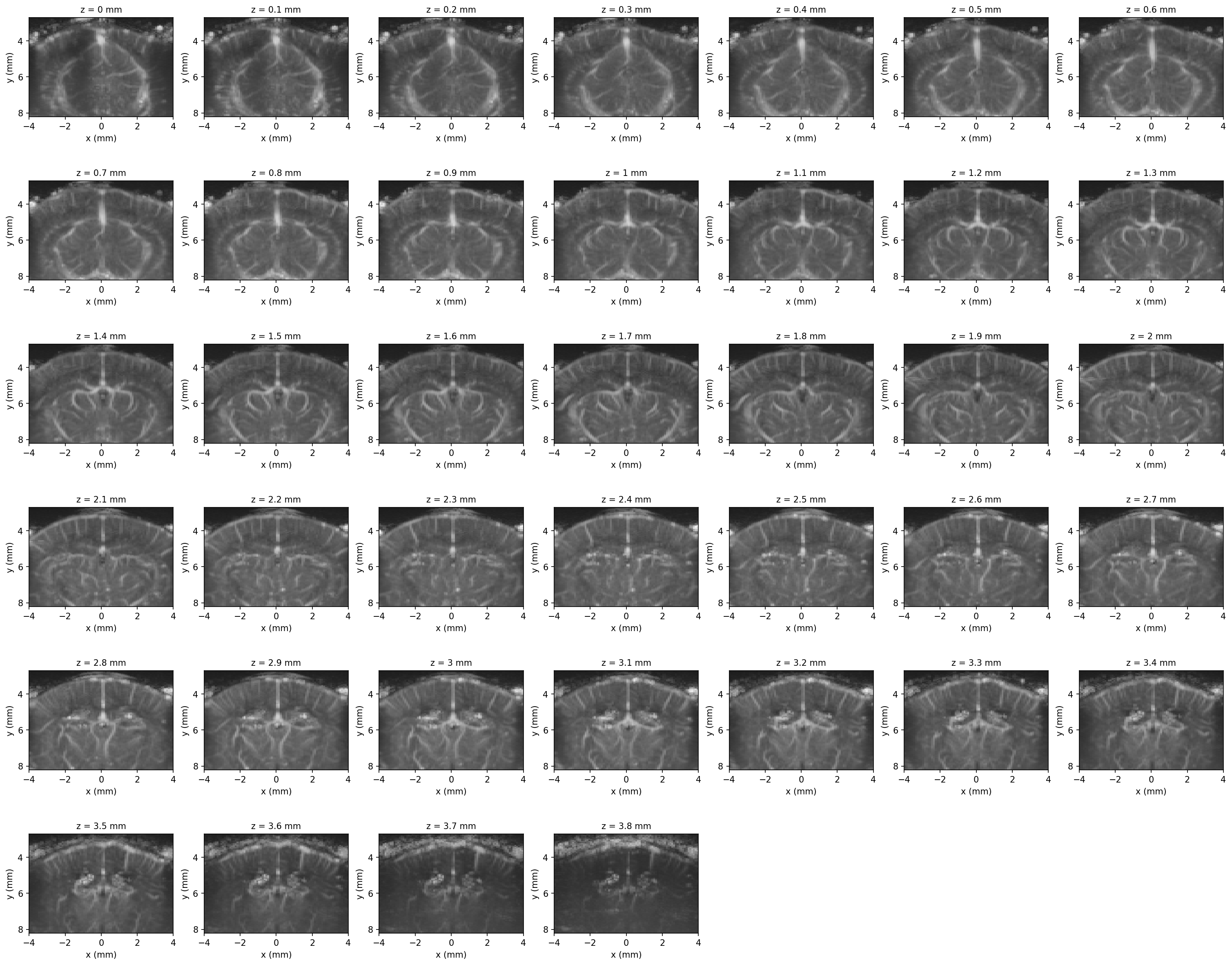
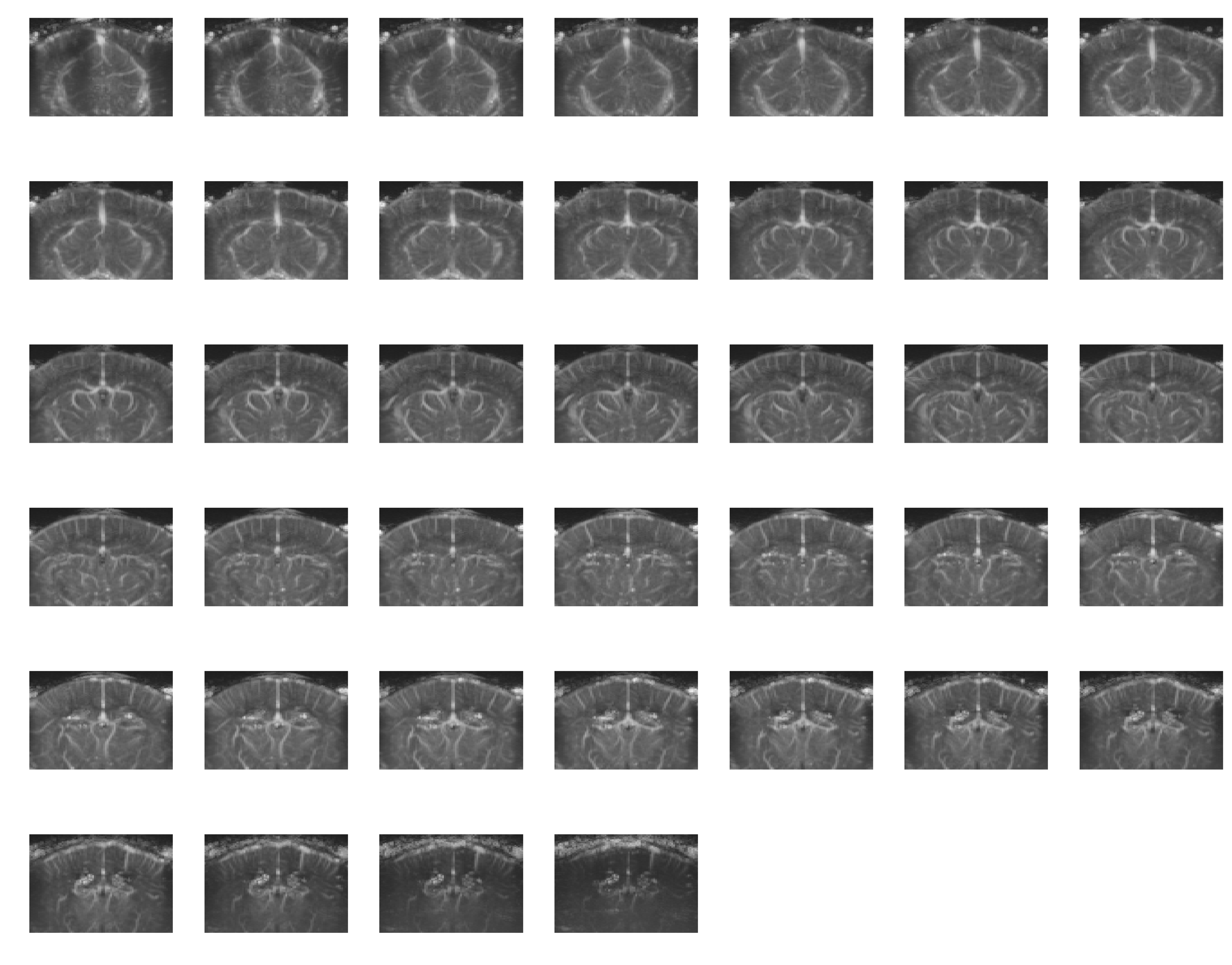
out automatically in an approximately square grid. Pass slice_mode explicitly to
choose a different world slicing direction:
angio = cf.load("sub-01_acq-angio_pwd.zarr")

plotter = angio.fusi.plot.volume(slice_mode="z", show_colorbar=False)
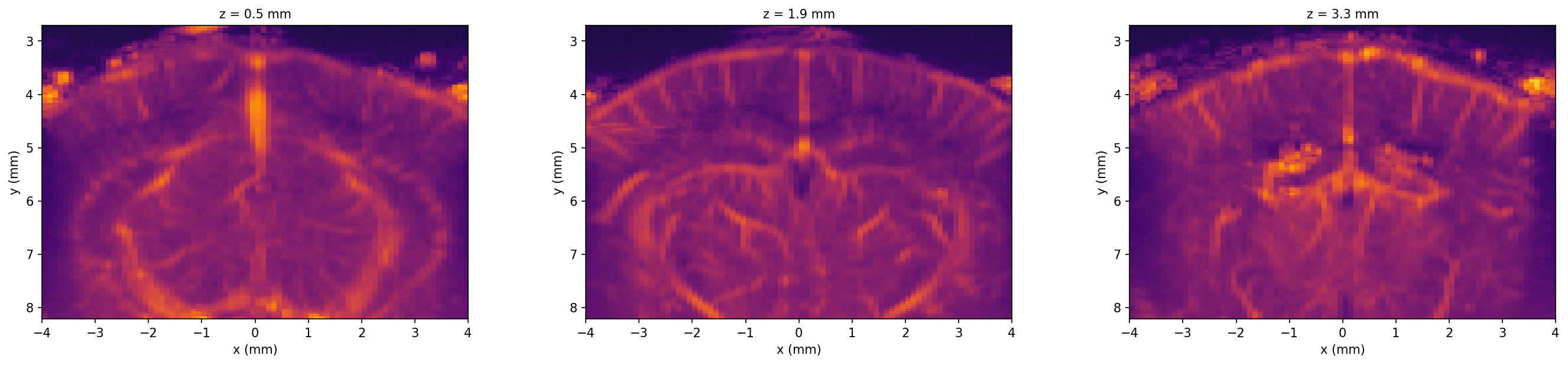
Selecting Slices and Colormap
By default all coordinates along slice_mode are shown. Use slice_coords to pick
specific ones and cmap/vmin/vmax to control the colormap and contrast. The grid
layout can be controlled using nrows and ncols, or by specifying axes directly with
axes (see the API reference for
details).
import numpy as np

z = angio["z"].values
margin = max(1, int(round(0.12 * (len(z) - 1))))
slice_coords = tuple(np.linspace(float(z[margin]), float(z[-margin - 1]), 3))

plotter = angio.fusi.scale.db().fusi.plot.volume(
    nrows=1,
    slice_mode="z",
    slice_coords=slice_coords,
    cmap="inferno",
    vmin=-20,
    vmax=0,
    show_colorbar=False,
)
Slicing Over a Non-Spatial Dimension
slice_mode can be a world axis (z/y/x) or any extra non-voxel dim, e.g.
time, pose, or a region dim such as the one a seed-based connectivity map is
stacked along (see below and the seed-based connectivity
example). Native voxel dims
(k/j/i) are not valid slice modes. Each requested coordinate along that dim
becomes its own panel, the same as slicing over z.
Display is always in world space, labeled in mm. For already axis-aligned data this is a
cheap dim rename onto a regular world grid — the same display z/y/x slicing
produces. For oblique data, each panel is resampled onto the world-axis-aligned grid,
keeping its own native per-axis resolution, so cells always render rectangular.
transpose=True swaps which of the two remaining spatial dims is drawn on rows versus
columns.
Thresholding
For functional activation maps or data where you want to suppress noise, threshold
sets a cutoff value. Subthreshold voxels are rendered transparently:
# Hide values where |data| < 3.0 (noise floor suppression).
plotter = stat_map.fusi.plot.volume(
    slice_mode="z",
    threshold=3.0,
    threshold_mode="lower",
    cmap="coolwarm",
    vmin=-6,
    vmax=6,
)
threshold_mode="upper" masks values above the threshold instead—useful for
removing saturation artifacts or thresholding decibel-scaled data.
Saving and Closing
plotter = pwd.fusi.plot.volume(slice_mode="z", cmap="hot")
plotter.savefig("sub-01_task-awake_pwd.png", dpi=150)
plotter.close()
Pass any keyword argument accepted by
matplotlib.figure.Figure.savefig (e.g.,
bbox_inches="tight", transparent=True).
Statistical Maps
plot_stat_map is the convenience helper for the
common statistical-overlay pattern: draw an anatomical/background volume first, then
overlay a statistical map with a colormap and value range picked automatically from the
statistic's sign.
Basic Usage
bg_volume is optional. Omit it to plot the statistical map on its own. When alpha is
not provided, the statistical layer is fully opaque wherever it has a value, and the
background only shows through where the statistical map has been masked out (typically
with threshold). If you want the background to remain visible throughout, pass
alpha < 1.
Automatic Range and Colormap Selection
By default, vmin and vmax are taken from the full stat_map, and auto_range=True
picks a suitable range + default colormap automatically:
- Both positive and negative values: diverging, symmetric
[-m, m]range (m = max(|vmin|, |vmax|)), withcmap="coolwarm"by default. - Only non-negative values (for example R² or F-statistics): sequential
[0, vmax]range, withcmap="viridis"by default. - Only non-positive values: sequential
[vmin, 0]range, withcmap="viridis_r"by default.
Customizing the Overlay and Background
Pass vmin/vmax explicitly to define a custom range, alpha or threshold to blend
the overlay with the background, and bg_kwargs to style the background volume itself:
Pass an explicit cmap to override the automatic choice, auto_range=False to use
vmin/vmax directly with no zero-anchoring, or a
matplotlib.colors.Normalize instance as norm (for
example TwoSlopeNorm, BoundaryNorm, or LogNorm) when you need a custom mapping.
When norm is provided, it overrides vmin, vmax, and auto_range entirely.
To overlay a statistical map onto an existing plot (for example one built with
plot_volume), call
VolumePlotter.add_stat_map on the
returned plotter; it applies the same automatic colormap and range logic as
plot_stat_map. For full manual control over the colormap and range, use
VolumePlotter.add_volume instead.
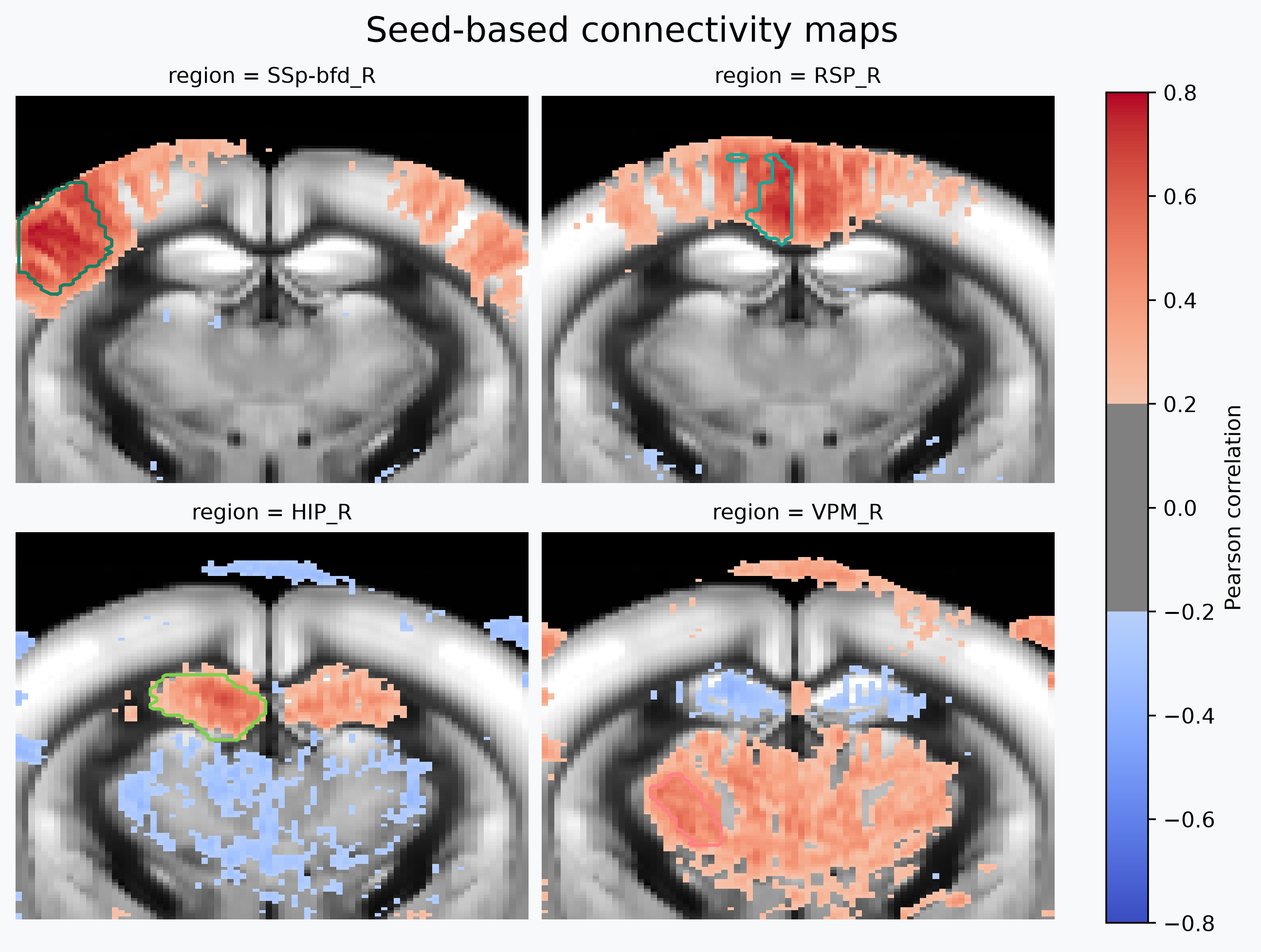
This figure is generated in the atlas-based seed connectivity maps
example, which walks through
registering a recording to an Allen-space template, resampling the SeedBasedMaps. SeedBasedMaps stacks one map
per seed along a region dim, so the figure is produced with slice_mode="region" —
one panel per seed, faceted over a non-spatial dim as described
above.
Overlaying Contours
Atlas outlines or region of interest (ROI) boundaries can be drawn on top of a volume plot to provide anatomical context. ConfUSIus represents masks as integer-labeled DataArrays where 0 is background and each positive integer identifies a distinct region.
Contours on top of a Volume
The most common use case is to draw atlas outlines on top of a fUSI volume.
plot_volume returns a
VolumePlotter that remembers the
coordinate-to-axis mapping; calling
add_contours on it draws outlines
on the matching panels. Masks produced by
get_masks carry Allen colors in their
attrs["rgb_lookup"], so no explicit color argument is needed:
Registering your data to an atlas
This example assumes your fUSI data has already been registered to the Allen Mouse
Brain atlas. See the Atlases guide for loading and working with brain
atlases, and the register a recording to an Allen fUSI
template
example for how to obtain the transform used in atlas.atlas.resample_like below.
from confusius.datasets import fetch_brainglobe_atlas

# Load atlas and resample to fUSI space (see the registration example linked above).
atlas = fetch_brainglobe_atlas("allen_mouse_100um")
atlas_fusi = atlas.atlas.resample_like(mean_vol, transform)

# Step 1: display an average power Doppler volume.
plotter = cf.plotting.plot_volume(mean_vol.fusi.scale.db(), show_colorbar=False)

# Step 2: overlay contours. Allen colors are read from
# atlas_fusi.annotation.attrs["rgb_lookup"] automatically.
plotter.add_contours(atlas_fusi.annotation)
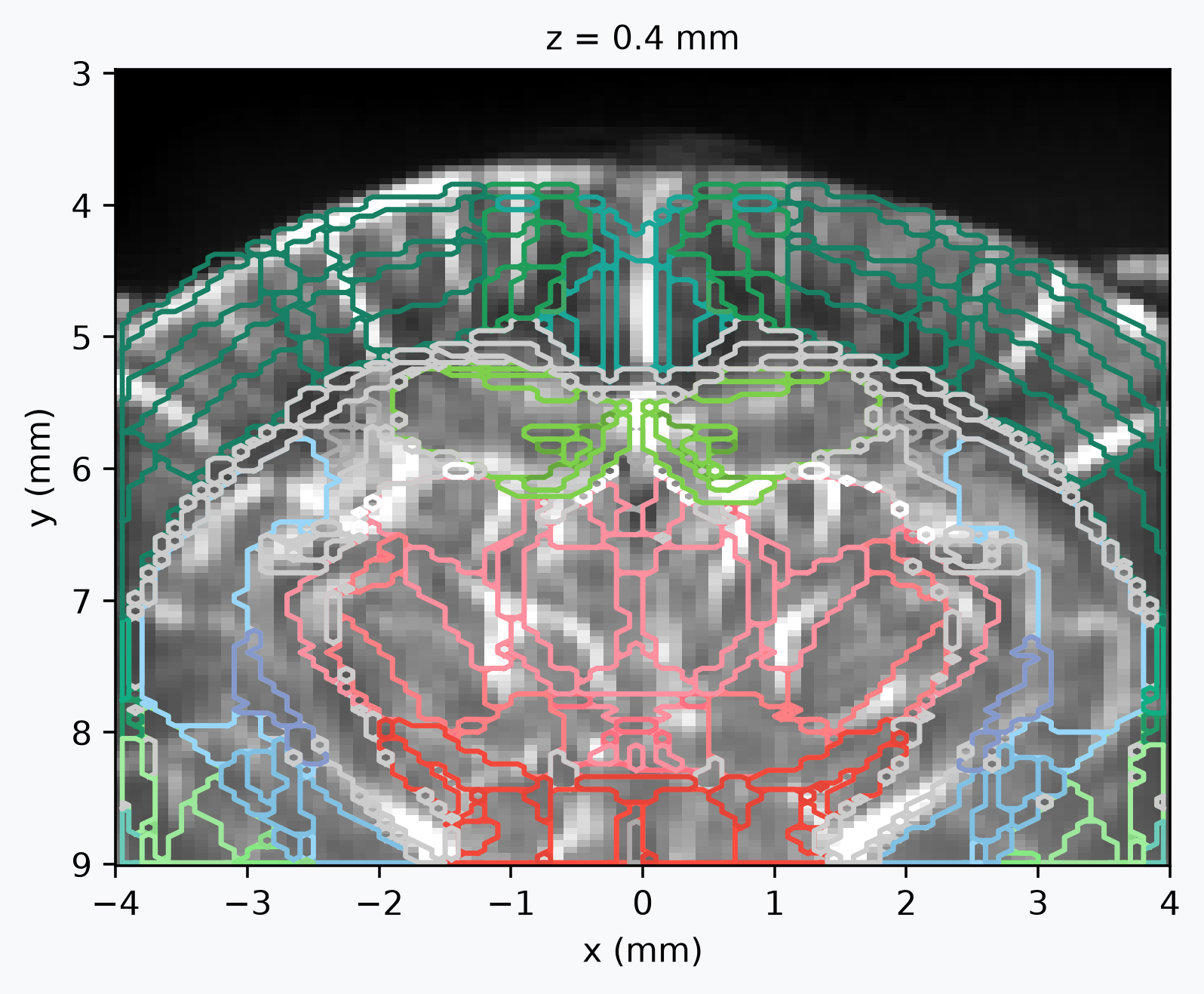
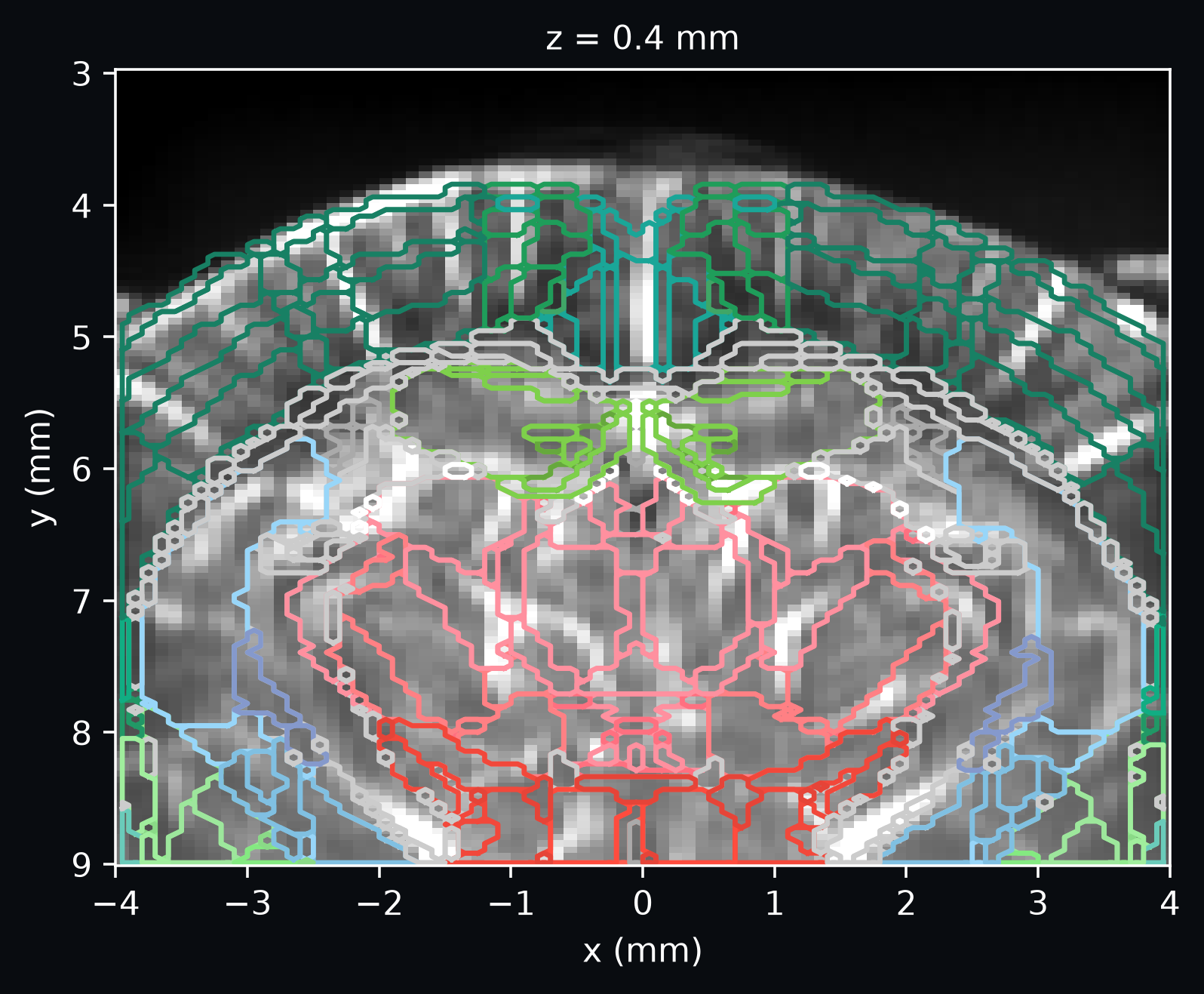
This figure is generated in the register a recording to an Allen fUSI template example, which walks through the full registration and atlas-resampling workflow.
Coordinate matching is done along the plotter's slice_mode's own coordinate value —
world position for z/y/x, voxel index for k/j/i, or the facet's own
coordinate (e.g. a region label) for a non-spatial slice_mode — matching contour
panels with those of the previously plotted volume. Slices present in the mask but
absent from the volume are skipped with a warning.
Contours-only Grid
plot_contours produces a contour grid without
any background image—useful for quickly inspecting mask or atlas coverage across slices,
or for drawing contours onto a set of pre-existing Axes
without the coordinate-matching of VolumePlotter:
# Contours on a black background (default).
plotter = cf.plotting.plot_contours(atlas_fusi.annotation, slice_mode="z")

# Specific colors per region.
plotter = cf.plotting.plot_contours(
    atlas_fusi.annotation,
    slice_mode="z",
    colors={1: "cyan", 2: "magenta"},
)
The .fusi.plot.contours() accessor provides the same function with a shorter syntax:
Composite Plots
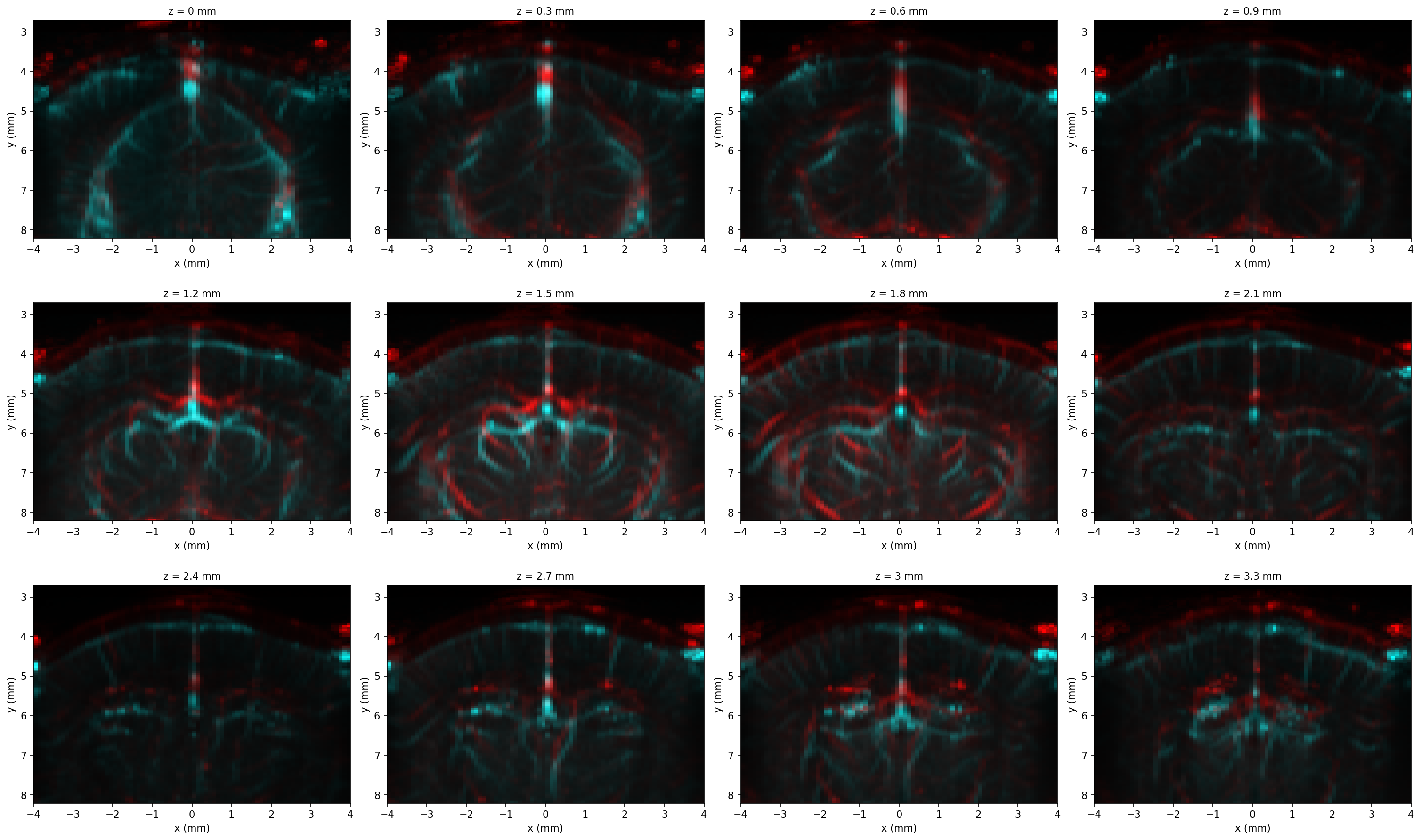
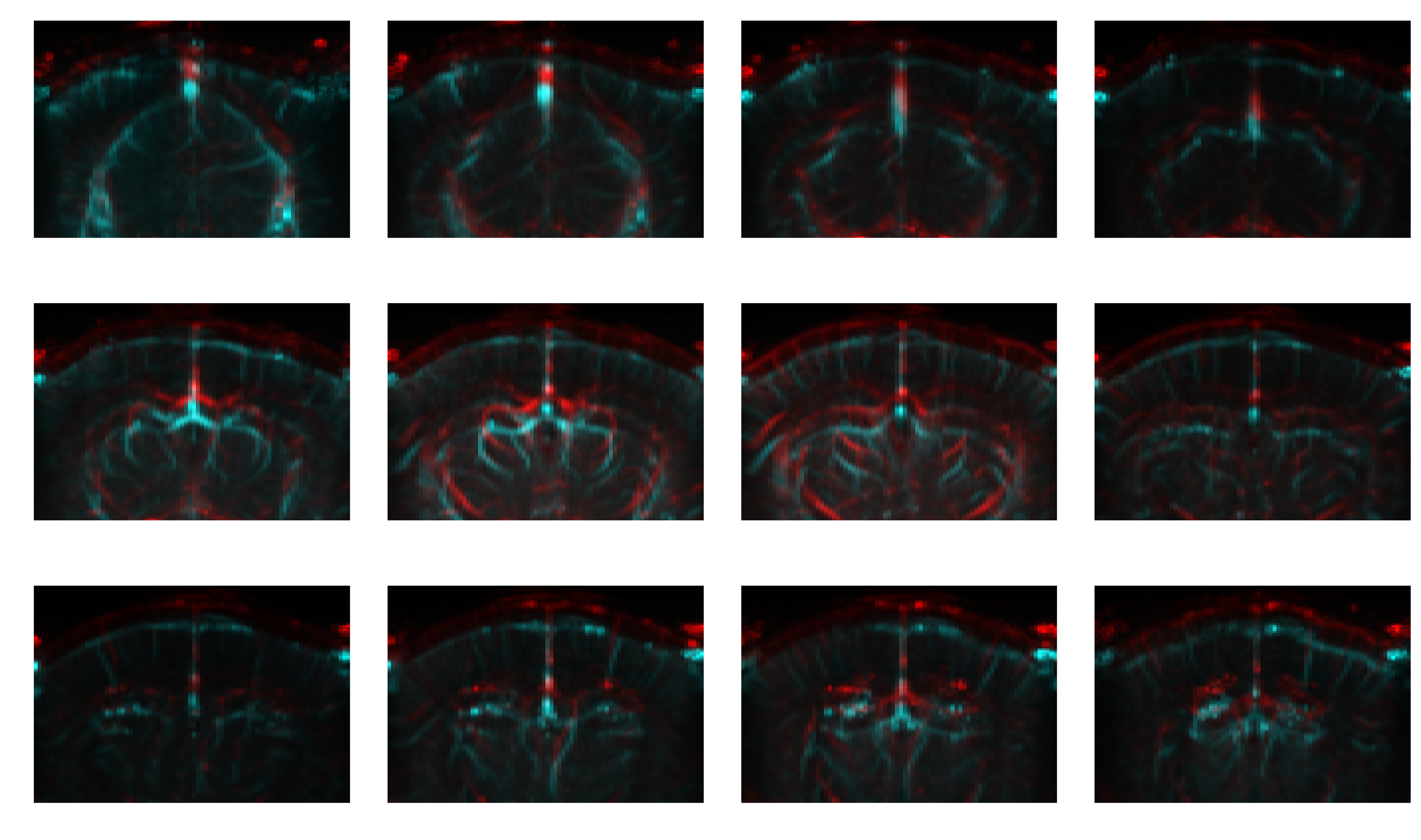
plot_composite overlays two volumes as a
red/cyan composite: the first volume drives the red channel, the second drives the
cyan channel (green + blue). This is the same encoding used by the live
Basic Usage
# Every third elevation slice keeps the figure compact while still showing the
# anatomical depth range.
composite_slices = list(np.asarray(angio["z"].values, dtype=float)[::3][:-1])

# Two angiography volumes from different sessions of the same subject.
plotter = angio.fusi.plot.composite(
    angio_2, slice_coords=composite_slices, normalize_strategy="per_slice"
)
# Every third elevation slice keeps the figure compact while still showing the
# anatomical depth range.
composite_slices = list(np.asarray(angio["z"].values, dtype=float)[::3][:-1])

# Two angiography volumes from different sessions of the same subject.
plotter = cf.plotting.plot_composite(
    angio, angio_2, slice_coords=composite_slices, normalize_strategy="per_slice"
)
By default angio_2 is resampled onto angio's grid (resample=True), so the two
volumes do not need to share the same coordinates. Additionally, the function returns a
VolumePlotter so you can use
add_contours to layer atlas outlines
over the composite.
Normalization Strategies
normalize_strategy controls how voxel intensities are mapped into the [0, 1]
range that drives each channel:
| Strategy | Per-array range | When to use |
|---|---|---|
"per_volume" (default) |
one range per volume | Each input is shown at its own contrast; preserves within-volume relative brightness. |
"per_slice" |
one range per slice | Maximizes contrast per slice; improves within-slice comparability. |
"shared" |
one range across volumes | Preserves absolute intensity differences between the two inputs. |
Skipping Resampling
If the two volumes already share the same grid (if one was previously registered onto
the other) pass resample=False to skip the resample step:
When resample=False, the two arrays must share dimensions, shape, and coordinates
within tolerance. Coordinates are checked with numpy.allclose-style tolerances
(rtol=1e-5, atol=1e-8 by default); once the check passes, data2's coordinates are
replaced with data1's so the two volumes share an exact coordinate frame downstream.
Widen rtol / atol to accept acquisitions on offset grids that you know are
equivalent.
Carpet Plots
A carpet plot (also called a grayplot or Power plot1) displays every voxel's time-series as a row in a 2D raster image with time on the x-axis. Z-scored by default, it makes motion artifacts, global signal transients, and outlier volumes immediately visible as vertical stripes or abrupt intensity changes.
Carpet plots are primarily used for quality control—for a deeper discussion of QC metrics, see the Quality Control guide.
Basic Usage
Without a mask, all non-zero voxels are included. With a mask, only voxels where mask
== True (or mask > 0 for integer-labeled masks) are shown. See the API reference of
plot_carpet for more options.
Matrix Plots
plot_matrix plots any square 2D matrix: a
region-by-region correlation or connectivity matrix, a confusion matrix, or any other
(n, n) array. It supports optional lower/upper triangle masking and grid lines. A
groups parameter annotates contiguous blocks of rows/columns with colored strips,
handy for marking anatomical groupings (e.g. cortex, thalamus) without cluttering the
plot with per-region colors. triangle can also overlay two matrices on the same axes—for
example, an estimate on the lower triangle and its significance mask on the
upper—by calling plot_matrix twice with complementary triangle values.
import confusius as cf

fig, ax = cf.plotting.plot_matrix(
    connectivity,
    labels=region_order,
    groups=group_labels,
    group_colors=group_colors,
    grid="gray",
    cbar_label="correlation",
)
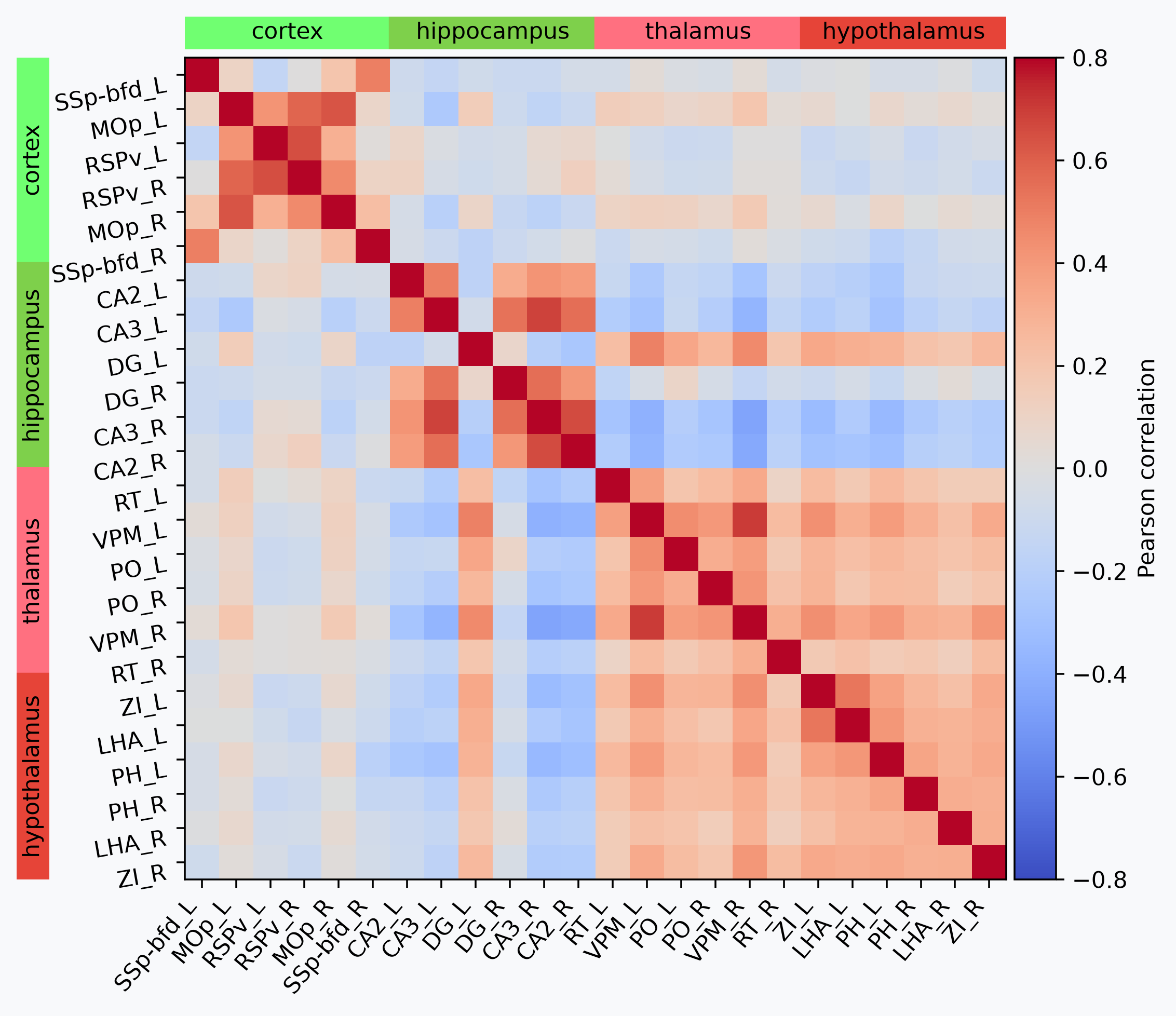
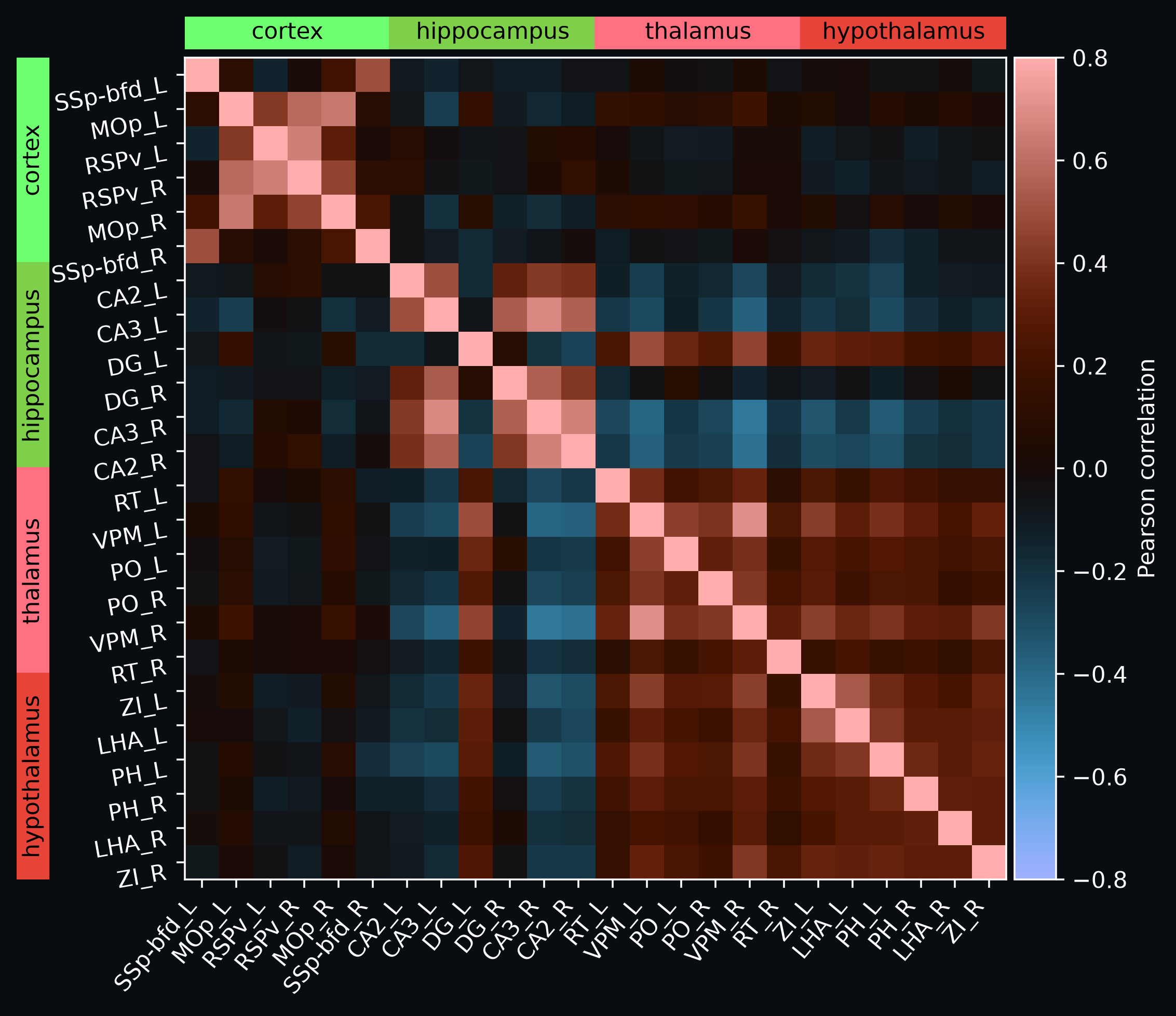
This figure is generated in the atlas-based region correlation matrix
example, which walks
through registering a recording to an Allen-space template, resampling the group_colors, sourced directly from the atlas
so each area is colored with its official Allen color.
Next Steps
Now that you can visualize your data, you're ready for:
- Registration: Correct for motion and align acquisitions to an anatomical template.
- Quality Control: Assess data quality and identify artifacts.
- Signal Processing: Extract regional signals and apply denoising.
API Reference
For full parameter documentation, see the Plotting API reference and the Xarray Integration API reference.
-
Power, Jonathan D. "A Simple but Useful Way to Assess fMRI Scan Qualities." NeuroImage, vol. 154, July 2017, pp. 150–58. DOI.org (Crossref), https://doi.org/10.1016/j.neuroimage.2016.08.009. ↩
-
Nunez-Elizalde, A. O., et al. "A Neurophysiological fUSI-BIDS dataset from awake, behaving mice." figshare dataset, 2022. DOI.org (Datacite), https://doi.org/10.6084/m9.figshare.19316228; mirrored on OSF at https://osf.io/43skw/. ↩